
Introduction
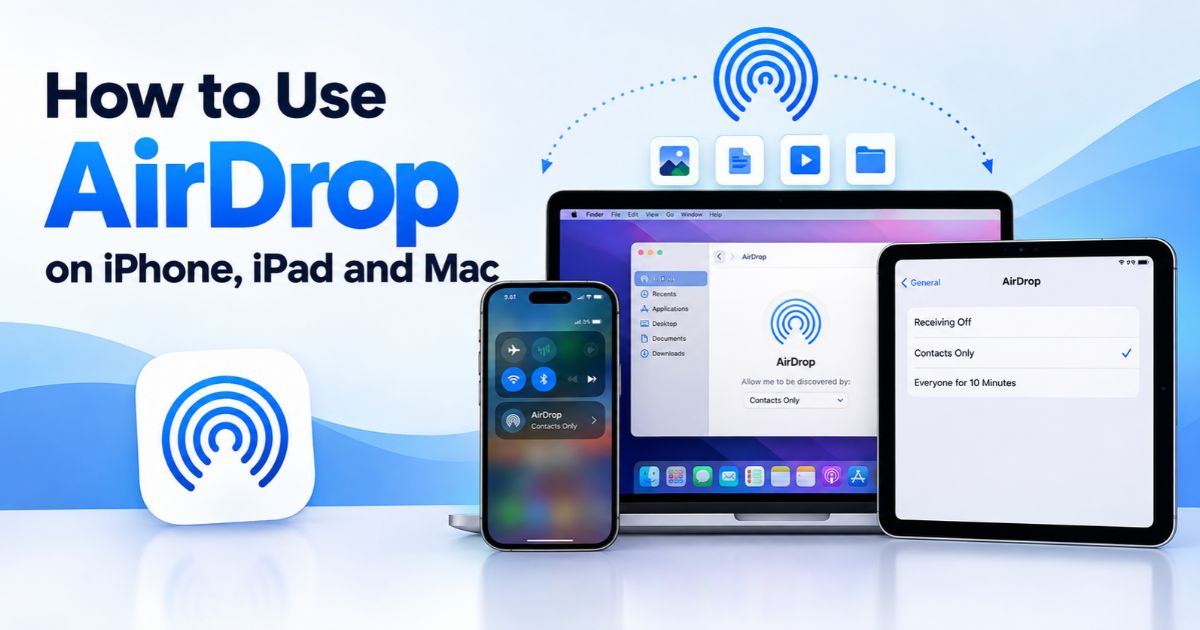
AirDrop is one of the fastest ways to move photos, documents, links and other items between nearby Apple devices, with no cables or email attachments needed. To turn on AirDrop, you enable Wi-Fi and Bluetooth and then choose who is allowed to find your device. The steps differ slightly between iPhone or iPad and Mac, and this guide explains both along with privacy tips and fixes for common problems.
Key Takeaways
- On iPhone or iPad, use Control Center or Settings > General > AirDrop.
- On Mac, use Control Center or the AirDrop section in Finder.
- Choose Contacts Only or Everyone for 10 Minutes, then return to the more private option when finished.
- Wi-Fi and Bluetooth must both be enabled, and the devices must be close together.
Using AirDrop on iPhone or iPad
To turn on AirDrop on an iPhone, open Control Center. On iPhones with Face ID, swipe down from the upper-right corner; on models with a Home button, swipe up from the bottom edge. Touch and hold the group of connectivity controls, then tap AirDrop. Pick Contacts Only or Everyone for 10 Minutes. You can reach the same setting through Settings > General > AirDrop, where a Receiving Off option is also available when you do not want any requests.
Wi-Fi does not need to be connected to a network, but it does need to be switched on, along with Bluetooth. On some versions, bringing two iPhones close together can also start a quick exchange of contact details, so keep that in mind when you are in a crowd.
Using AirDrop on Mac
The quickest way to turn on AirDrop on a Mac is from the menu bar. Click Control Center, select AirDrop and choose the visibility option offered by your macOS version. Alternatively, open Finder and click AirDrop in the sidebar, where a setting such as Allow me to be discovered by lets you choose No One, Contacts Only or Everyone. If AirDrop is missing from the sidebar, check Finder settings to show it. Keep the receiving Mac awake and nearby, and make sure Wi-Fi and Bluetooth are enabled.
Choose Who Can Discover You
Contacts Only limits visibility to people your device can recognize as contacts, which usually requires that their Apple Account details match what is stored in your contact card. Everyone for 10 Minutes makes your device discoverable more broadly for a short time on supported versions and then switches back automatically. Avoid leaving broad discoverability on in public places such as trains, airports and events. Labels and behavior can vary by operating-system version.
Send a File with AirDrop
Open the photo, document, web page or other item, tap or click Share, choose AirDrop and select the nearby recipient. The other person may need to tap Accept. Between your own devices signed in to the same Apple Account, transfers can often be accepted automatically. Photos and videos normally arrive in the Photos app, while documents and other files usually land in Downloads on a Mac or in the Files app on iPhone.
If the Other Device Does Not Appear
Bring both devices closer, wake their screens and confirm Wi-Fi and Bluetooth are on. Check that the receiving device allows discovery by you. Turn off Personal Hotspot on iPhone, since it can interfere. On a Mac, a firewall set to block all incoming connections can also prevent AirDrop from working. If you cannot turn on AirDrop because the toggle is greyed out, look at Screen Time > Content & Privacy Restrictions > Allowed Apps, or ask the administrator if the device is managed. As a last step, toggle AirDrop off and on or restart both devices.
Protect Your Privacy
Accept files only from people you recognize. Unexpected AirDrop requests can include unwanted images, and the displayed device name does not prove who the sender is. Decline anything unfamiliar, and after sharing, switch your receiving setting back to Contacts Only or the most restrictive option that suits you.
FAQs
Does AirDrop use Wi-Fi or Bluetooth?
AirDrop uses Bluetooth to discover nearby devices and Wi-Fi for the transfer. Both should be enabled.
Can I AirDrop between an iPhone and a Windows PC?
AirDrop is designed for supported Apple devices, not Windows PCs. For Windows, use a cable, cloud storage or another compatible sharing service.
Why does AirDrop say no people found?
The other device may be out of range, asleep, set to receive from no one, or limited to a visibility option that does not include you. Check Wi-Fi, Bluetooth and discovery settings on both devices.
Final Thoughts
Enable Wifi and Bluetooth, then turn on AirDrop from Control Center, Settings or Finder, and pick a visibility setting that fits the moment. If a device does not appear, check discovery permissions and distance before restarting. For privacy, use broad visibility only while you need it.
Recent Article : iMessage on Windows: What Works and How to Set It Up

Jennifer Aston is a passionate poetry curator and writer with a deep love for the written word. She believes poetry has the power to heal, inspire, and connect people across all walks of life. Through PoemSteric, she brings together timeless and modern verses for every emotion and every moment.