
Introduction
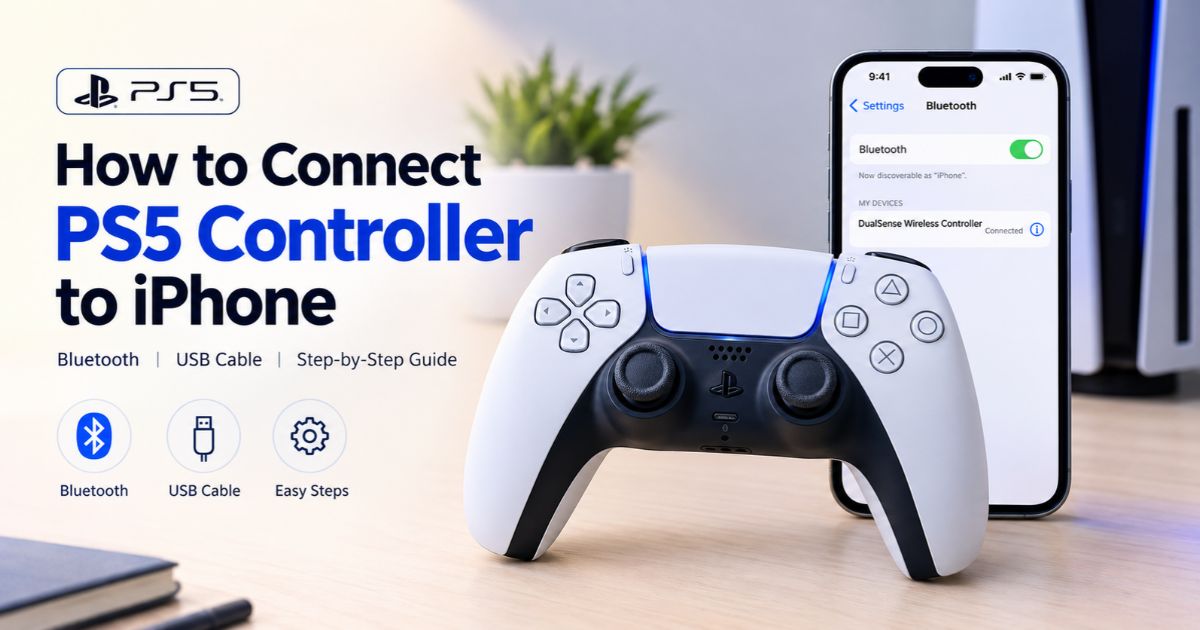
Wondering how to connect PS5 controller to iPhone? It works, and it takes only a few taps. Apple lists the DualSense and DualSense Edge as supported PlayStation controllers, and you can pair them over Bluetooth or, in some cases, with a USB cable. DualSense support arrived in iOS 14.5, so any iPhone running that version or later can use one.
Two details catch people out when they connect a PS5 controller to an iPhone. First, pairing mode uses the Create button together with the PS button (older PlayStation 4 controllers used Share). Second, a paired controller only works in games that support controllers. This guide walks through the Bluetooth and USB methods, explains which games respond, and shows what to do if the controller won’t connect.
Key Takeaways
- Apple supports the PS5 Dual Sense and DualSense Edge on iPhone, over Bluetooth or a data-capable USB cable.
- To enter pairing mode, hold the PS button and the Create button together until the light bar flashes.
- Then open Settings > Bluetooth and tap the controller in the list.
- Your iPhone needs iOS 14.5 or later for DualSense support.
- A DualSense can store up to four paired devices, so you can switch between a PS5 and an iPhone.
- Only games with controller support will respond to the buttons and sticks.
What You Need
- A DualSense or DualSense Edge controller with some battery charge
- An iPhone running iOS 14.5 or later
- A game that supports controllers
How to Connect PS5 Controller to iPhone With Bluetooth
These steps follow Apple’s PlayStation controller guide.
- Turn the controller off. If it is on, hold the PS button until it turns off.
- Unplug any USB cable. Apple says to disconnect a cable if one is attached.
- Enter pairing mode. Press and hold the PS button and the Create button together until the light bar flashes. The Create button sits near the upper-left corner of the touchpad.
- Open Bluetooth on your iPhone. Go to Settings > Bluetooth and wait for the controller to appear in the list of nearby devices.
- Tap the controller. It is usually listed as DualSense Wireless Controller.
- If it pairs but does not connect, press and release the PS button on the controller.
When the connection works, the player indicator lights under the light bar show which of the controller’s four pairing slots it is using.
Can You Connect a PS5 Controller to an iPhone With a Cable?
Sometimes. Apple says DualSense and DualSense Edge controllers pair and connect automatically when they are plugged directly into your Apple device with a USB cable that supports both data and charging. A cable that only carries power will not work.
The DualSense has a USB-C port, and iPhone 15 and later models also use USB-C, so a data-capable USB-C cable is the simplest wired option on those phones. If the cable method does not work, install the latest software updates for the controller and the iPhone, or pair over Bluetooth instead.
Which Games Work With a PS5 Controller on iPhone?
Connecting the controller does not make every game controller-friendly. Apple notes that support for specific buttons and features varies by controller and by the app you are using, so a game may support the basic controls but not extras such as controller lights. If you are unsure, check the game’s App Store listing or the developer’s support page.
How to Customize PS5 Controller Buttons on iPhone
On iOS 16 or later, Apple includes controller customization settings for a growing number of controllers. Open Settings > General > Game Controller, tap the controller’s name, then tap Default Controls, if the option is available for your controller.
If you pair more than one customizable controller, the same screens include Buddy Controller. It combines the inputs of two controllers into one, so another person can help you get past a tricky level.
How to Switch the Controller Between Your PS5 and iPhone
According to Sony’s multi-device pairing page, a DualSense can pair with up to four devices. Pairing with the PS button and Create button assigns each new device to the next free slot. If all four slots are used, the slot you have not connected to for the longest time is replaced.
To switch devices later:
- Turn on the device you want to connect to, and unplug any USB cable from the controller.
- Hold the PS button and one of the face buttons for about three seconds: Triangle for slot 1, Circle for slot 2, Cross for slot 3, or Square for slot 4.
- Release both buttons when the light bar and player indicator blink. The indicator shows the slot number with that many lights.
Two more details from Sony: if the controller is connected to a PS5 console, you cannot switch away from it using the phone’s Bluetooth settings, so use the controller’s buttons. And if you press the PS button while the controller is off, it connects to the device it used last.
PS5 Controller Not Connecting to iPhone: Fixes
Try these in order.
- Update both devices. Install the latest iOS update. If the iPhone says the controller needs a firmware update, follow Sony’s instructions for updating PlayStation controllers.
- Forget the controller and pair again. In Settings > Bluetooth, tap the info button next to the controller, choose Forget This Device, then repeat the pairing steps above.
- Start from a fully off controller. Hold the PS button until it turns off, unplug any cable, then enter pairing mode again.
- Reduce Bluetooth traffic. Apple says that having fewer Bluetooth devices connected can help with connection problems, including wireless interference.
- Charge the controller. Use the charging solution that came with it or that Sony recommends.
- Reconnect by hand. If the controller was paired earlier, open Settings > Bluetooth and tap it in the list.
- Try USB. A data-capable cable plugged straight into the iPhone should pair automatically.
How to Disconnect a PS5 Controller From iPhone
Hold the PS button until the controller turns off. To remove the pairing completely, open Settings > Bluetooth, tap the info button next to the controller, and choose Forget This Device. To use it with the iPhone again, put it back into pairing mode.
FAQs
Which iPhones work with a PS5 controller?
Any iPhone running iOS 14.5 or later. That update added DualSense support. Apple also lists the DualSense Edge as supported.
Can I use a PS5 controller on iPhone without Bluetooth?
Yes, with a USB cable that supports data and charging. Apple says the controller pairs and connects automatically when plugged in directly.
Why is the light bar flashing but nothing connects?
A flashing light bar means the controller is in pairing mode. Open Settings > Bluetooth and tap the controller. If it pairs but does not connect, press and release the PS button.
Will pairing with my iPhone unpair it from my PS5?
Not by itself, because the controller keeps up to four pairings. If all four slots were already in use, the least recently used one is replaced, and you may have to pair that device again.
Do I need an app to connect the controller?
No. Pairing uses the iPhone’s Bluetooth settings. You only need an app or game that supports controllers to use it.
Final Thoughts
To connect PS5 controller to iPhone, turn the controller off, hold the PS and Create buttons until the light bar flashes, and select it in Settings > Bluetooth. If anything goes wrong, update both devices, forget the controller and pair again, or try a data-capable USB cable. Then start a game that supports controllers.
Recent Article : How to Turn On AirDrop on iPhone and Mac

Jennifer Aston is a passionate poetry curator and writer with a deep love for the written word. She believes poetry has the power to heal, inspire, and connect people across all walks of life. Through PoemSteric, she brings together timeless and modern verses for every emotion and every moment.