
Introduction
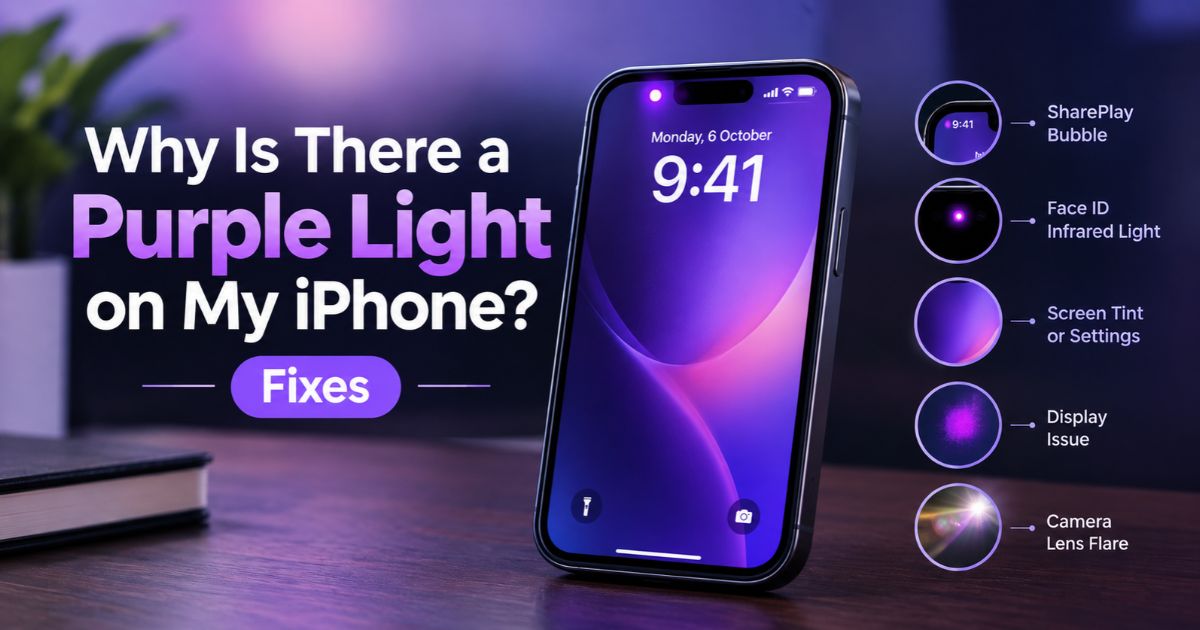
A purple light on my iPhone can mean several different things, depending on where you see it. A purple bubble behind the clock usually means SharePlay is active. A faint purple or pink glow near the front camera is often infrared light from Face ID that shows up on other cameras. A purple tint, spot, or glow in photos can come from display settings, display damage, or camera lens flare.
Apple’s microphone and camera privacy indicators are orange and green, not purple. Finding out exactly where the light appears and how it behaves will help you choose the right fix instead of changing settings you don’t need to.
Key Takeaways
- A purple bubble behind the clock in the status bar means SharePlay is in use.
- A faint purple or pink glow near the front camera is often infrared light from Face ID, which some cameras can see.
- A purple tint across the whole screen is often a display or accessibility setting.
- A purple spot that stays in one place, grows, or comes with lines or flickering may point to a display problem.
- Apple’s microphone and camera privacy indicators are orange and green, not purple.
- Backup your iPhone before arranging a repair if it still works.
Why Is There a Purple Light on My iPhone?
The first step is to work out where the purple color appears. Different symptoms have different causes, so one fix will not work for every case.
1. A Purple Bubble Appears Behind the Clock
On iPhones with Face ID, a colored bubble behind the time in the top-left corner of the status bar means a feature is active. A purple bubble means your iPhone is using SharePlay to share content, such as during a FaceTime call. The other bubble colors are blue, green, and red, and they mean different things, such as location use, a call, or a recording.
If the purple bubble appears while you are not sharing anything, check whether a FaceTime call or shared session is still running. Ending the session should remove it.
2. A Faint Purple or Pink Glow Appears Near the Front Camera
If you see a faint purple or pink glow near the front camera, especially when you look at your iPhone through another camera or in a dark room, it is likely the True Depth camera used for Face ID. It gives off infrared light, which the human eye cannot see but some cameras can pick up. Apple’s Face ID safety information says light from the True Depth camera may be visible through certain cameras, and may also be faintly visible in a very dark room, and that this is expected.
This is normal behavior, not a defect.
3. A Purple Tint Covers the Entire Screen
When the whole display looks purple, pink, or unusually tinted, check your display and accessibility settings first. Features such as Color Filters, Night Shift, and True Tone can change how colors look.
If the color change appeared suddenly and remains after you check those settings, a software issue or a display hardware problem may be involved.
4. A Purple Spot Appears in One Area
A purple spot, blotch, or patch that stays in the same part of the display may point to a screen problem, particularly if it grows or appears alongside lines, flickering, or black areas. Pressure, impact, and liquid exposure are common causes of this kind of display damage.
Do not press on the affected area or try to massage the screen. Pressure can make display damage worse.
5. A Purple Glow Appears in Photos
A purple or pink glow that appears only in the Camera app or in saved photos may be lens flare or an internal reflection. This can happen when a bright light, such as the sun or a strong lamp, shines into the lens from outside the frame.
Check whether the effect is in the saved photo or video, not across the whole iPhone display.
How to Fix a Purple Tint or Spot on the iPhone Screen
Start with simple checks before you consider a repair. These steps help you tell a setting from a persistent display problem.
Fix 1: Check Color Filters
Color Filters can change the colors across your whole screen. A color tint may make the screen look purple even when the display hardware works normally.
- Open Settings.
- Tap Accessibility.
- Tap Display & Text Size.
- Tap Color Filters.
- Check whether Color Filters is turned on.
- Turn it off for now to see whether the colors return to normal.
If you use a color filter on purpose, review the selected filter and its intensity instead of removing a setting you need.
Apple explains these options in its guide, Change display colors on iPhone.
Fix 2: Check Other Display Settings
Several other settings can change how colors look. Review them one at a time:
- Smart Invert and Classic Invert: Found under Settings > Accessibility > Display & Text Size. They reverse colors across the display.
- Night Shift: Found under Settings > Display & Brightness. It shifts the display toward warmer colors, especially in the evening.
- True Tone: Also under Settings > Display & Brightness. It adjusts the display’s color balance to match the light around you.
These features do not mean something is wrong. Change one setting at a time and check the screen after each change, so you can tell which one is responsible.
Fix 3: Restart Your iPhone
A restart can help if the color change comes from a temporary software problem.
- Save your work and close any apps you can.
- Turn off your iPhone using the shutdown method for your model.
- Wait a few seconds.
- Turn it back on.
- Check whether the purple tint is still there.
Use the normal shutdown method instead of forcing a restart unless the phone is unresponsive. If the purple color remains, continue with the other checks.
Fix 4: Check for an iOS Update
Software updates can include bug fixes. To check:
- Open Settings.
- Tap General.
- Tap Software Update.
- Follow the on-screen instructions if an update is available.
Backup your iPhone before you install an update, and make sure it has enough battery or is plugged in. An update may help with a software-related display issue, but it will not repair a physically damaged screen.
How to Fix a Purple Glow in iPhone Photos
A purple glow in a photo is different from a purple tint across the display. Before you change settings or book a repair, check whether the effect appears only when the camera is active.
Fix 1: Clean the Camera Lens
Fingerprints, dust, and smudges on the lens can affect image quality.
- Remove the camera lens cover or case if it is safe to do so.
- Gently wipe the lens with a soft, lint-free cloth.
- Open the Camera app.
- Take a test photo in normal lighting.
Avoid rough materials and liquids that could damage your iPhone.
Fix 2: Change the Light Angle
Bright light entering the camera can create lens flare or colored reflections. Take another picture with the bright light source outside the frame, or change your position slightly, and compare the results.
If the purple glow goes away or changes as you move, light reflection is the likely cause.
Fix 3: Test Another Camera or Mode
Some iPhone models have more than one rear camera. Switch between the available cameras and compare the results. You can also record a short video.
If the purple effect appears with only one camera, that helps narrow down the cause. If it appears with every camera, mode, and kind of lighting, a professional inspection may be appropriate.
Is the Purple Light an iPhone Privacy Indicator?
No. Apple’s privacy indicators use two colors:
- Orange: An app is using the microphone. The indicator appears as an orange square if Differentiate Without Color is turned on.
- Green: An app is using the camera, or the camera and microphone together.
These appear in the status bar on iPhones with iOS 14 or later. They are privacy features, not signs of display damage. A purple bubble behind the clock is a different indicator: it means SharePlay is active.
How to Check Which App Is Using Your Camera or Microphone
When you see an orange or green indicator, open Control Center to see which app recently used the camera or microphone.
You can also review app permissions:
- Open Settings.
- Tap Privacy & Security.
- Tap Camera or Microphone.
- Review which apps have permission.
- Turn off access for apps that do not need it.
Turning off permission may stop some apps from working as expected, so only change permissions you understand.
For more detail, read Apple’s guide, About the orange and green indicators in your iPhone status bar. Apple also lists the other status-bar icons in Learn the meaning of iPhone status icons.
When Should You Contact Apple Support?
Basic troubleshooting is a sensible first step, but some display and camera problems need a professional inspection.
Consider contacting Apple Support or an authorized service provider when:
- A purple spot stays in the same place after a restart.
- The discolored area grows over time.
- Purple lines, flickering, or black patches appear.
- The display changes color even when color filters and other settings are off.
- The camera produces purple artifacts in many kinds of lighting.
- The phone was recently dropped, crushed, or exposed to liquid.
- The touch screen stops responding in the affected area.
Back up your data before handing the phone in for service, if you can. Avoid opening the phone or attempting a DIY screen repair unless you have the right experience and tools.
If the display is lifting from the frame or the phone looks swollen, stop using and charging it and get professional help. Do not press the screen back into place.
FAQs
Why is there a purple light on my iPhone?
It depends on where you see it. A purple bubble behind the clock means SharePlay. A faint purple glow near the front camera is often Face ID infrared light seen through another camera. A purple screen tint may come from settings or hardware, and a purple glow in photos may be lens flare.
What does the purple bubble behind the clock on my iPhone mean?
It means your iPhone is using SharePlay to share content. End the FaceTime call or shared session to remove it.
Is a purple spot on an iPhone screen a sign of damage?
It can be. A purple spot that stays in place or spreads can point to a display problem, especially after a drop, pressure, or liquid exposure. Check your display settings and restart the phone, but get it inspected if the spot remains or grows.
Can an iPhone privacy indicator be purple?
No. Apple’s microphone and camera indicators are orange and green. A purple bubble behind the clock is a different indicator for Share Play.
Why does my iPhone camera show a purple glow?
A purple glow in photos may be lens flare or internal reflection when a bright light shines into the camera from outside the frame. Clean the lens, change the angle, and take test photos in different lighting.
Will restarting my iPhone remove the purple light?
It may if a temporary software problem is responsible. It will not fix physical display damage, and lens flare may come back when you shoot under the same lighting.
Should I reset my iPhone to fix a purple screen?
Not as a first step. Check Color Filters and other display settings, restart the phone, and install available updates first. Back up your data before you try anything more disruptive.
Final Thoughts
A purple light on an iPhone does not always mean the phone is damaged. Where it appears is the best clue: a bubble behind the clock is SharePlay, a faint glow near the front camera is usually Face ID infrared light, a whole-screen tint often comes from settings, a fixed purple spot may be a display problem, and a glow in photos may be lens flare.
Start by checking where the color appears, then work through your display settings, a restart, and an update. Keep in mind that Apple’s privacy indicators are orange and green, not purple. If discoloration persists, spreads, or comes with other display problems, contact Apple Support or an authorized service provider.
Recent Article : What Does 5G UC Mean? Speed, Coverage & More

Jennifer Aston is a passionate poetry curator and writer with a deep love for the written word. She believes poetry has the power to heal, inspire, and connect people across all walks of life. Through PoemSteric, she brings together timeless and modern verses for every emotion and every moment.