
Introduction
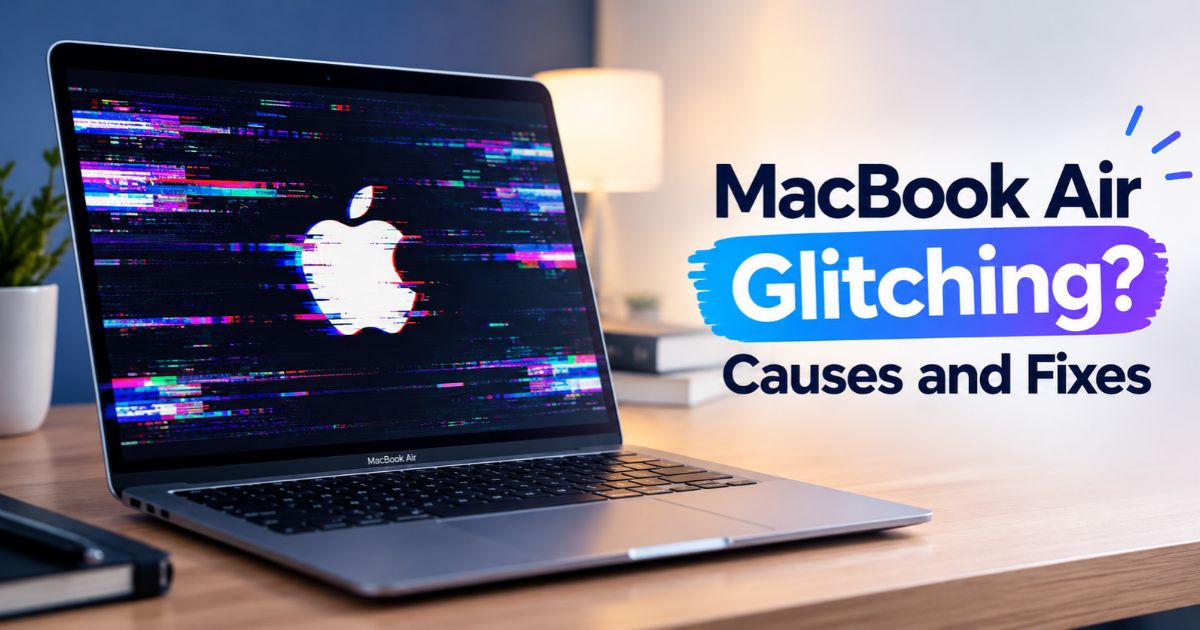
MacBook Air glitching can appear in several ways, including screen flickering, colored lines, distorted images, frozen applications, slow performance, or unexpected restarts. The right fix depends on the symptom, because a display problem does not necessarily have the same cause as an application freeze or a startup failure.
Start by saving your work, restarting the Mac when possible, and checking whether the issue occurs in one application or across the entire system. You can then investigate software updates, connected accessories, memory usage, and startup behavior. This guide explains how to narrow down common problems safely and recognize when persistent symptoms may require professional diagnosis.
Key Takeaways
- Identify whether the problem involves the display, an application, overall performance, or startup.
- Save your work and begin with simple, reversible troubleshooting steps.
- Check whether the glitch occurs in one app or across multiple applications.
- Use Safe Mode to investigate certain software-related problems and Apple Diagnostics when a hardware issue is suspected.
- Persistent display artifacts, physical damage, or repeated unexpected shutdowns may require professional service.
What Does MacBook Air Glitching Look Like?
The word glitching describes different symptoms, so identify what your MacBook Air is doing before choosing a solution.
Screen Flickering, Lines, or Visual Artifacts
Display problems may appear as flashing, horizontal or vertical lines, unusual colors, distorted images, or portions of the screen that behave abnormally. A glitch that occurs only in one application may have a different explanation from one that appears across the desktop.
Persistent artifacts, particularly after a restart, deserve closer investigation. Their appearance alone does not prove that the display panel or another internal component has failed.
Freezing, Lag, or an Unresponsive Interface
A MacBook Air may appear to glitch when an application stops responding, the pointer moves slowly, windows become unresponsive, or the system takes unusually long to complete simple tasks.
These symptoms can occur when an application encounters a problem or when the Mac is handling a demanding workload. Check whether the issue affects one app or the whole system before deciding what to do next.
Black Screens, Restarts, or Startup Problems
A black screen, repeated restart, or Mac that cannot complete startup requires a different troubleshooting approach from an ordinary display flicker.
Check whether the Mac is powered on, whether the display responds, and whether the problem occurs before or after the login screen. If the Mac repeatedly shuts down or cannot start normally, avoid repeatedly forcing it to restart without investigating the cause.
Why Is Your MacBook Air Glitching?
Several factors may contribute to abnormal behavior. Treat them as possibilities to investigate rather than confirmed diagnoses.
A temporary software problem: An application or macOS process may become unresponsive. Restarting the affected app or the Mac can sometimes resolve a temporary issue.
An application-specific issue: If the glitch appears only in one app, that application’s settings, version, workload, or compatibility may be relevant.
High resource demand: Demanding applications, numerous browser tabs, or intensive background tasks can contribute to lag and freezing. Activity Monitor can help identify unusual CPU or memory usage.
An accessory or external display: A faulty cable, adapter, dock, or external monitor can cause display problems when that equipment is involved. This is less relevant when the issue occurs only on the MacBook Air’s built-in screen.
A macOS or software compatibility issue: An update or incompatible application may be relevant, especially when symptoms began after a software change. Timing alone, however, does not prove that an update caused the problem.
A possible hardware fault: Persistent visual artifacts, physical damage, repeated shutdowns, or symptoms that continue during appropriate diagnostic checks may warrant professional inspection.
The goal is to narrow down the possibilities systematically rather than replace hardware or reinstall macOS based on one symptom.
What to Do First When Your MacBook Air Starts Glitching
Follow these initial steps before attempting advanced troubleshooting.
Save Your Work and Restart
Save open documents and close applications normally if the Mac is responsive. Then choose Apple menu > Restart.
A restart can resolve some temporary software problems. If the Mac is completely frozen, you may need to hold the power button until it shuts down and then turn it on again. Use that method only when necessary, because unsaved work may be lost.
If the same glitch returns after restarting, record when it occurs and move on to the next checks.
Disconnect Unnecessary Accessories
Disconnect nonessential accessories, including external monitors, hubs, docks, and adapters, if they are connected. Keep the power adapter attached when needed.
Check whether the symptom changes when the accessories are disconnected. If an external monitor was involved, reconnect components one at a time to help identify whether a particular cable, adapter, or device is contributing to the problem.
Do not open the MacBook or attempt internal repairs as part of this initial check.
Check for Software Updates
Open System Settings and look for General > Software Update. If a relevant macOS update is available, review the update information and back up important files before installing it.
Also check for updates to the application involved in the problem. An app-specific glitch may be related to that application’s version rather than macOS itself.
Do not assume an update will fix every problem, and avoid interrupting an installation once it has started.
Record When the Glitch Happens
Observe the circumstances surrounding the issue:
- Does it appear immediately after startup or only after login?
- Does it happen in one application or several?
- Does it occur during video playback or another demanding task?
- Does it begin when an external monitor is connected?
- Did it start after installing software or changing settings?
These details help you choose the next troubleshooting step and give a technician useful information if service becomes necessary.
How to Fix MacBook Air Screen Flickering or Display Glitches
Screen problems need to be investigated separately from performance problems.
Check Whether the Problem Is Limited to One App
Open another application and observe whether the glitch continues. If it appears only in one app, update that app, check its settings, and see whether the issue occurs during a specific task.
If the entire desktop shows visual artifacts, the cause may be broader. That still does not automatically establish a hardware fault, but it makes further system-level checks more important.
Test External Display and Accessory Connections
If you use an external monitor, disconnect it and check the MacBook Air’s built-in display. If the problem affects only the external display, inspect the monitor’s power, cable, adapter, dock, and supported display settings.
When possible, connect the display directly to the Mac instead of using a hub. Check that the display and adapter support the resolution and refresh rate you have selected.
If the built-in screen is also affected, an external monitor is less likely to be the sole explanation.
Check Whether the Glitch Persists After Restart
After restarting, observe the display during normal use. If the glitch disappears, it may have been associated with a temporary issue, although that does not establish the exact cause.
If the same artifacts return repeatedly, note whether they appear during startup, after login, or only when a particular application is running. This information can help determine whether software troubleshooting or professional display diagnosis is the next appropriate step.
Know When Display Problems Need Service
Persistent lines, recurring image distortion, visible physical damage, or display symptoms that worsen during ordinary use should not be ignored.
Back up important data if possible and arrange professional diagnosis when the issue continues despite basic troubleshooting. Do not assume that a display panel, cable, or logic board has failed based only on the pattern of lines or flickering.
How to Fix a MacBook Air That Keeps Freezing or Lagging
If the main problem is poor performance rather than visible screen artifacts, investigate resource usage and software behavior.
Check CPU and Memory Usage
Open Activity Monitor and review the CPU and Memory tabs.
The CPU tab can help identify processes using substantial processing power. The Memory tab shows RAM usage and Memory Pressure, which can help you understand whether memory demand is contributing to the slowdown.
A demanding application may legitimately use considerable resources. Look for unusual or persistent behavior, and do not terminate unfamiliar system processes just because their resource usage appears high.
Investigate Apps and Login Items
If the Mac becomes slow after you open a particular application, update the app and check whether the problem continues when it is closed.
You can also review login items in System Settings to identify unnecessary applications that launch automatically. Remove only items you recognize and no longer need.
If the issue occurs only after certain software loads, that pattern may help narrow down the cause. It does not, by itself, prove that the software is defective.
Check Available Storage and Update the Problematic App
Check available storage in System Settings. A Mac with limited free storage may encounter problems during certain workloads, but deleting files does not directly increase its installed RAM.
If one application repeatedly freezes, check for updates and investigate whether the problem occurs with a particular file or task. Keep a backup before removing files or making significant system changes.
How to Use Safe Mode to Troubleshoot MacBook Air Glitches
Safe Mode can help determine whether software that loads during startup contributes to certain problems. The steps differ between Apple silicon and Intel-based MacBook Air models.
Start an Apple Silicon MacBook Air in Safe Mode
- Choose Apple menu > Shut Down and wait for the Mac to turn off completely.
- Press and hold the power button until the startup options appear.
- Select your startup volume.
- Press and hold the Shift key, then select Continue in Safe Mode.
- Wait for the Mac to start and sign in.
Use the exact instructions for your model and macOS version if the interface differs.
Start an Intel MacBook Air in Safe Mode
- Restart or turn on the Mac.
- Immediately press and hold the Shift key.
- Continue holding it until the login window appears.
- Sign in. You may be asked to sign in again.
These instructions apply to Intel-based Macs, not Apple silicon models.
What Does the Safe Mode Result Mean?
Test the Mac’s normal activities while it is in Safe Mode, keeping in mind that some features and performance behavior may differ from a normal startup.
If the glitch disappears, software or startup items that are not loaded in the same way during Safe Mode may deserve investigation. If the issue persists, further troubleshooting may be necessary.
Neither result proves a hardware fault or guarantees that software is responsible. Safe Mode is a diagnostic step, not a universal repair.
When to Run Apple Diagnostics or Contact Support
If the problem continues and you suspect a hardware issue, Apple Diagnostics can help identify certain hardware faults.
Before running diagnostics, save your work, install available updates if practical, shut down the Mac, and disconnect unnecessary external devices. Keep the Mac on a stable surface with adequate ventilation.
For an Apple silicon Mac, the diagnostic startup procedure begins by pressing and holding the power button to access startup options, then following the appropriate diagnostic instructions. Intel-based Macs use a different startup procedure. Consult the current instructions for your model before proceeding.
Record any reference codes that appear. A diagnostic result can help guide further investigation, but a result that reports no problem does not rule out every intermittent fault.
Contact Apple Support or a qualified repair provider if the Mac repeatedly shuts down, the display continues showing artifacts, the device has physical damage, or you cannot resolve the problem safely. Back up important files before service whenever possible.
Common MacBook Air Troubleshooting Mistakes
Reinstalling macOS too early: Start with simpler checks before considering a major system repair or reinstallation.
Using the wrong startup instructions: Apple silicon and Intel MacBook Air models have different Safe Mode procedures. Identify your processor type first.
Installing untrusted repair utilities: Avoid applications that promise to repair every display or performance problem without explaining their methods.
Forcing repeated shutdowns: A forced shutdown can cause unsaved changes to be lost. Use it only when normal controls are unavailable.
Assuming every screen glitch is a hardware failure: Similar symptoms can have different causes. Gather evidence before deciding that a component needs replacement.
Opening the laptop without the proper skills: Internal repairs can damage components and may create safety risks. Seek professional help when hardware work is necessary.
FAQs
Why is my MacBook Air screen glitching?
Possible causes include an application-specific problem, software issues, display connections when an external monitor is involved, or a hardware fault. Check whether the problem occurs in one app or across the system before choosing a fix.
Can a macOS update cause temporary problems?
Software changes can sometimes coincide with compatibility or performance issues, but timing alone does not prove that an update caused a glitch. Check for relevant updates and investigate whether the problem affects a particular application.
How do I know whether a glitch is caused by an app?
Check whether it occurs only in one application and whether it disappears when you close that app. Updating the app and testing normal use can provide useful clues, although they may not establish the exact cause.
Will Safe Mode fix MacBook Air screen flickering?
Safe Mode is a diagnostic tool, not a guaranteed fix. If the flickering disappears in Safe Mode, investigate software and startup items. If it continues, further troubleshooting or professional diagnosis may be needed.
Can overheating cause MacBook Air performance problems?
Thermal conditions can affect computer performance, but warmth alone does not establish overheating or explain a display glitch. Use the Mac on a hard, stable surface with good ventilation, and seek assistance if it repeatedly shuts down or behaves abnormally.
When should I take my MacBook Air for repair?
Seek professional diagnosis if display artifacts persist, the Mac repeatedly shuts down, physical damage is present, or the device cannot start reliably. Back up your data when possible and provide the technician with a description of the symptoms and when they occur.
Final Thoughts
MacBook Air glitching can describe several different problems, so the most effective approach is to identify the symptom before choosing a solution. Start with safe checks, restart when appropriate, investigate connected accessories and applications, and use Safe Mode or Apple Diagnostics when they are relevant.
If the problem persists, avoid guessing which component has failed. Record what happens, protect your important files, and seek professional diagnosis when necessary. A careful troubleshooting process can help you avoid unnecessary repairs while making sure serious issues are not ignored.
Recent Article : How to Clear RAM on Mac: Safe, Simple Fixes

Jennifer Aston is a passionate poetry curator and writer with a deep love for the written word. She believes poetry has the power to heal, inspire, and connect people across all walks of life. Through PoemSteric, she brings together timeless and modern verses for every emotion and every moment.