
Introduction
A Mac that feels slow, freezes while opening applications, or displays a memory warning may be struggling with its available RAM. Learning how to clear RAM on Mac can help you reduce unnecessary memory demand, but the first step is to check whether memory pressure is actually causing the problem.
macOS automatically manages memory using techniques such as compression and caching. That means high memory usage does not always indicate a fault, and clearing RAM repeatedly is not necessary for every Mac. You can start with Activity Monitor, identify applications using substantial memory, and close or restart the right processes when needed. This guide explains how to check memory usage, free up resources safely, and investigate recurring performance problems.
Key Takeaways
- Use Activity Monitor to check Memory Pressure before attempting to free RAM.
- Quit unnecessary applications and browser tabs to reduce memory demand.
- Restart your Mac when appropriate, especially if an application or the system remains unresponsive.
- Avoid force-quitting unfamiliar system processes or relying on unverified memory-cleaning commands.
- Investigate recurring memory warnings instead of repeatedly clearing RAM without identifying the cause.
How to Check RAM Usage on Mac
Before changing anything, find out how your Mac is using its memory. Activity Monitor provides a built-in view of RAM usage and helps you identify applications that may be contributing to slow performance.
Open Activity Monitor
You can open Activity Monitor through Spotlight:
- Press Command + Space to open Spotlight.
- Type Activity Monitor.
- Press Return to open the application.
You can also find it in Applications > Utilities.
Select the Memory Tab
In Activity Monitor, select the Memory tab. You will see a list of running applications and processes alongside information about their memory use.
Click the Memory column to organize the list and identify applications using substantial amounts of RAM. Do not automatically close the application at the top of the list. Some programs legitimately need more memory when handling large files, video editing, or demanding tasks.
Understand Memory Pressure and Swap
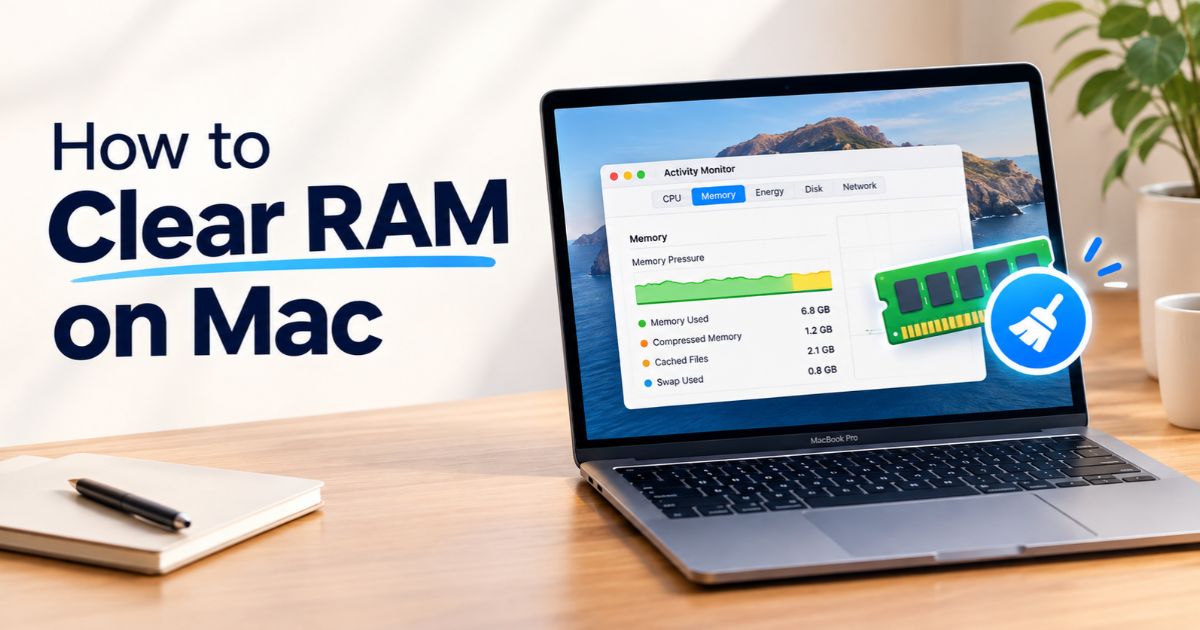
The Memory section displays several important indicators:
- Memory Pressure: Shows how effectively available memory is meeting the Mac’s current processing needs.
- Memory Used: Shows how much RAM is currently in use.
- Compressed Memory: Shows memory that macOS has compressed to make more room for active tasks.
- Cached Files: Shows data held in memory to help applications and files reopen more efficiently.
- Swap Used: Shows the amount of startup-disk space being used to move memory data between RAM and storage.
The Memory Pressure graph is especially useful. Green generally indicates that memory is meeting current demands efficiently. Yellow suggests that memory resources may be under increasing pressure, while red indicates that memory demand is more problematic.
A high Memory Used figure alone does not prove that your Mac needs a cleanup. Interpret it alongside Memory Pressure, the workload, and the symptoms you experience.
How to Clear RAM on Mac Without Extra Apps
You can begin with the built-in tools in macOS. Follow these steps in order, starting with actions that are easy to reverse.
Quit Unnecessary Applications
Applications consume memory while they run, even when you are not actively using them. If you have several programs open, quit the ones you no longer need.
Select the application and press Command + Q, or choose Quit from its application menu. Closing a window does not always quit the application, so check whether it remains open.
Save your work before quitting. Unsaved changes may be lost if you close an application without saving them.
Close Memory-Heavy Browser Tabs
Modern websites can use substantial memory, particularly when they include video, interactive content, or complex web applications. Having many tabs open can increase the browser’s total memory demand.
Close tabs you no longer need and quit the browser if you have finished using it. If the browser repeatedly consumes unusually high memory, investigate its extensions and check whether one particular website is responsible.
You do not need to close every tab or browser window. Focus on the ones that are unnecessary or associated with a noticeable slowdown.
Quit an Unresponsive App Through Activity Monitor
If an application stops responding, Activity Monitor can help you close it.
- Open Activity Monitor and select Memory.
- Find the application that is unresponsive.
- Select the application.
- Click the Stop button in the toolbar.
- Choose Quit when available, or Force Quit if the application cannot close normally.
Use Force Quit only when necessary. Unsaved changes may be lost, and you should not terminate unfamiliar system processes simply because they use memory.
Restart Your Mac When Necessary
Restarting closes the current user session and starts macOS again. It can help when a temporary application problem or system slowdown persists after you quit unnecessary programs.
Save open documents, quit your applications, and select Apple menu > Restart. After restarting, open only the applications you need and check whether the original problem returns.
A restart is a troubleshooting step, not a requirement to perform every day. If memory problems repeatedly return, investigate the cause rather than relying on constant restarts.
Why Your Mac Keeps Using So Much RAM
If memory pressure repeatedly becomes high, several factors may be involved.
Too many demanding applications: Running a browser, video editor, image editor, and other demanding applications simultaneously can increase memory demand.
Browser tabs and extensions: Complex websites, background tabs, and browser extensions may consume memory. Check whether a particular tab or extension is associated with the problem.
An application that behaves abnormally: An app that continually increases its memory usage during ordinary work may have a bug or another issue worth investigating. A single high reading is not enough to establish that an app has a memory leak.
Background and login items: Some applications launch automatically and continue running when you do not need them. Review login items and background activity, removing only items you recognize and no longer need.
Workload and hardware limits: Large media projects, virtual machines, and other intensive tasks can require more memory than everyday browsing. If your workload regularly exceeds the Mac’s available resources, closing a few apps may provide only temporary relief.
The best solution depends on which of these situations applies. Use Activity Monitor to observe what happens before, during, and after the slowdown.
Do RAM Cleaner Apps or Terminal Commands Help?
Are Memory-Cleaner Apps Necessary?
macOS already manages RAM automatically. Third-party utilities may provide monitoring or other features, but you should not assume that an app will make your Mac faster simply by claiming to clear memory.
Before installing a cleaner, check what it does, what permissions it requests, whether it comes from a trustworthy developer, and whether it addresses the actual problem. Closing unnecessary applications or resolving an app-specific issue may be more useful than repeatedly forcing memory to be released.
Be cautious with applications that promise dramatic speed improvements without explaining how they achieve them.
What About the purge Terminal Command?
You may find instructions online recommending the purge command to clear memory caches. This is not a universal fix for slow Macs, and it is generally unnecessary for routine memory management.
Cached files are not automatically wasted memory. macOS can reuse available memory for active tasks when necessary. Forcing caches to clear may remove useful cached data without resolving the cause of high memory pressure.
Avoid running unfamiliar Terminal commands copied from websites, especially commands that require administrator privileges or make additional system changes.
What to Do if Your Mac Still Runs Slowly
Memory is only one possible reason for poor performance. If closing unnecessary applications does not help, investigate other resources.
Check CPU Usage
In Activity Monitor, select the CPU tab to see which applications and processes are using processing power. A demanding application can make your Mac feel slow even when memory is not the main problem.
Look for a process that remains unusually busy during ordinary use. Research its purpose before quitting it, and avoid terminating unfamiliar system processes.
Check Available Storage and Software Updates
RAM and storage are different resources. RAM is working memory used by active tasks, while storage holds your files and applications.
Check the available storage through System Settings and review whether your Mac needs a relevant macOS or application update. Limited storage can complicate some workloads, but deleting files does not directly increase the Mac’s installed RAM capacity.
If you remove files, make sure they are no longer needed and keep a backup of important documents.
Investigate Repeated Memory Warnings
If macOS repeatedly reports that your system has run out of application memory, record which applications were running and what you were doing when the warning appeared.
Update or troubleshoot the affected application, check for recurring resource usage, and consider whether your usual workload is appropriate for the Mac’s available memory. If the problem persists during ordinary tasks, consult Apple Support or a qualified technician.
Common RAM-Clearing Mistakes to Avoid
Treating all used RAM as wasted: macOS uses available memory to support active applications and cache useful data. High usage alone is not a reason to panic.
Force-quitting system processes: An unfamiliar process may be essential to macOS. Identify it before taking action.
Confusing RAM with storage: Deleting downloads or moving files to an external drive does not upgrade the Mac’s physical memory.
Installing untrusted cleaning software: A cleaner cannot guarantee better performance, and unnecessary permissions may create additional privacy or security risks.
Ignoring recurring symptoms: If the same memory warning returns every day, investigate the application or workload responsible instead of repeatedly restarting.
FAQs
How do I clear RAM on a Mac quickly?
Open Activity Monitor, select Memory, and check Memory Pressure. Quit unnecessary applications and browser tabs, or restart the Mac if the slowdown persists. You usually do not need a dedicated RAM-cleaning application.
Does restarting a Mac clear RAM?
Restarting ends the current session and clears the working state of running applications. It can resolve temporary problems, but it will not permanently fix an application that repeatedly consumes excessive memory.
Why is my Mac using so much memory?
Common reasons include multiple demanding applications, browser tabs, background tasks, and intensive workloads. Check Activity Monitor to identify which applications use memory and whether Memory Pressure indicates a genuine problem.
Is yellow Memory Pressure always a serious problem?
No. Yellow indicates that memory resources may be under greater pressure, but you should consider the workload and whether performance is affected. Persistent red pressure or repeated memory warnings deserve closer investigation.
Are RAM-cleaner apps necessary on Mac?
No. macOS manages memory automatically. Some utilities may offer monitoring features, but do not assume that forcing memory to clear will improve performance. Diagnose the cause before installing extra software.
Can I upgrade the RAM in a MacBook?
It depends on the exact model. Many modern MacBooks use integrated memory that is not designed for a routine user upgrade. Check your model’s official specifications and repair documentation before purchasing hardware or planning an upgrade.
Final Thoughts
Learning how to clear RAM on Mac starts with understanding memory pressure, not simply trying to make the Memory Used number smaller. Activity Monitor can help you identify demanding applications, while quitting unnecessary programs and restarting when appropriate can resolve temporary slowdowns.
If memory warnings or performance problems continue, investigate the affected apps, workload, CPU usage, and available storage. A careful diagnosis is more useful than repeatedly clearing memory or installing a cleaner that promises results without evidence.
Recent Article : How to Schedule Texts on iPhone: Easy Steps

Jennifer Aston is a passionate poetry curator and writer with a deep love for the written word. She believes poetry has the power to heal, inspire, and connect people across all walks of life. Through PoemSteric, she brings together timeless and modern verses for every emotion and every moment.