
Introduction
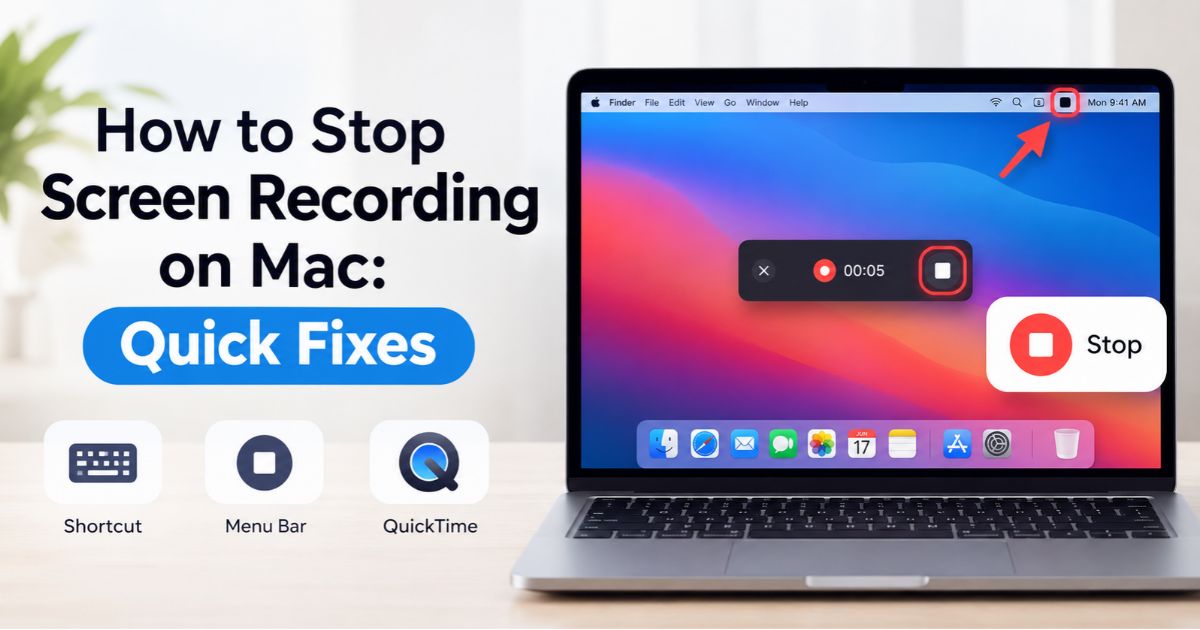
How to stop screen recording on Mac takes one click or one shortcut. Click the Stop button in the menu bar, or press Command–Control–Esc. Both work with Apple’s built-in tools, including the Screenshot toolbar (Shift–Command–5) and QuickTime Player on supported versions of macOS.
If the recording won’t stop, the cause is usually simple. The menu bar may be hidden, another app may be recording, or your Mac may still be saving a large video. This guide covers every fix in the order you should try them, from the fastest shortcut to last-resort options, and shows you where your finished recording is saved.
Key Takeaways
- Fastest method: Press Command–Control–Esc, or click the Stop button in the menu bar.
- Screenshot toolbar: Press Shift–Command–5 to start recordings, then stop them with the menu-bar Stop button.
- QuickTime Player: Stop with the same menu-bar button or shortcut. On current macOS, QuickTime uses the Screenshot recording controls.
- Third-party recorders (OBS, Zoom, Loom and similar): use the app’s own Stop or End Recording control.
- Missing Stop button: Move your pointer to the top edge of the screen to reveal a hidden menu bar.
- Missing video: Recordings save to the Desktop by default, unless you changed the destination.
- Last resort: Force-quit only when the recording app is truly frozen, because unsaved video can be lost.
How to Stop Screen Recording on Mac Quickly
There are two main ways to end a recording made with Apple’s built-in tools. Use whichever is easier at the moment.
Use the Stop Button in the Menu Bar
While a recording is running, macOS shows a Stop button (a small circle with a square inside) in the menu bar at the top right of the screen. This is the simplest way to stop.
- Move your pointer to the top of the screen.
- Find the Stop button in the menu bar.
- Click it once.
- Wait a moment while the video finishes saving. A thumbnail preview usually appears in the bottom-right corner.
The exact look of the button can vary slightly between macOS versions. On newer versions, you may also see a recording indicator in the menu bar showing that screen capture is active.
Screenshot suggestion: Add an original screenshot of the Mac menu bar with the Stop button highlighted, so readers can match it to their own screen.
Use the Keyboard Shortcut
The Mac shortcut to stop screen recording is Command–Control–Esc. Press all three keys together while the recording is active.
- Make sure the recording is still running.
- Hold down Command and Control.
- Press Esc.
- Release the keys and wait for the file to save.
This is especially handy when an app is in full-screen mode and the menu bar is hidden.
Don’t mix this up with two similar shortcuts:
- Shift–Command–5 opens the Screenshot toolbar so you can start a recording or screenshot.
- Option–Command–Esc opens the Force Quit window. It does not stop a recording.
Stop a Recording from the Screenshot Toolbar
If you started recording with Shift–Command–5, you will notice the toolbar disappears once recording begins. That is normal. The Stop button replaces it in the menu bar. Pressing Shift–Command–5 again does not always end the recording, so use the Stop button or Command–Control–Esc instead.
On older MacBook Pros with a Touch Bar, you may also see a Stop button on the Touch Bar while recording.
Stop a QuickTime Player Recording
You can record your screen in QuickTime Player by opening the app and choosing File > New Screen Recording.
On current versions of macOS, this opens the same Screenshot recording controls. Stop the recording using the menu-bar Stop button or Command–Control–Esc. After you stop, QuickTime may open the recording so you can play it back, trim it, or save it to a folder of your choice.
If you are on an older macOS version and see a separate QuickTime recording window with its own red record button, click the same button again to stop.
Stop a Third-Party Screen Recorder
Apps like OBS Studio, Zoom, Loom, Camtasia and Teams run their own recording tools, so the Apple shortcut may not work with them.
- OBS Studio: click Stop Recording in the Controls panel.
- Zoom: click Stop Recording or Pause/Stop in the meeting toolbar.
- Loom and similar apps: use the Stop button on the app’s floating control bar.
If you are unsure which app is recording, check the Dock and the menu bar for a recording icon or timer.
What to Do If the Stop Button Is Missing
A missing Stop button doesn’t always mean your Mac is frozen. Check these things first.
Check Whether the Menu Bar Is Hidden
In full-screen apps, the menu bar hides automatically. Move your pointer to the very top edge of the display and wait a second. The menu bar should slide into view, and you can click Stop.
On a Mac with several displays, look at the menu bar on the display where you started recording.
Also check System Settings > Control Center if you use an auto-hide menu bar setting. If the button is still hidden, press Command–Control–Esc.
Check Which App Is Recording
The right method depends on the app that started the capture.
- Screenshot toolbar or QuickTime: menu-bar Stop button or Command–Control–Esc.
- Third-party recorder: open that app and use its Stop button.
- Screen sharing in a call: stop sharing or leave the call; this is different from recording.
Avoid force-quitting unrelated apps. It will not stop the real recording process and may cause you to lose work.
Make Sure the Recording Hasn’t Already Ended
Sometimes the recording already stopped, especially after a timer ran out or the Mac went to sleep. Check your Desktop or chosen save folder for a new file before starting again.
How to Stop a Frozen Mac Screen Recording
If the Mac feels sluggish or the Stop button doesn’t respond, go through these steps in order.
Step 1: Try the Normal Stop Method Again
Press Command–Control–Esc once, then wait 10 to 30 seconds. Long or high-resolution recordings can take a while to finish processing, and the Mac may look unresponsive while it saves.
Step 2: Close Heavy Apps
If the Mac is struggling, close demanding apps such as browsers with many tabs, video editors, or games. Freeing up memory can help the recording finish saving.
Step 3: Force Quit the Recording App as a Last Resort
Use this only if the app responsible for the recording is completely unresponsive.
- Press Option–Command–Esc to open the Force Quit window.
- Select the unresponsive app. It is often shown as “not responding.”
- Click Force Quit and confirm.
Force-quitting can interrupt saving and may leave you with a damaged or missing video, so don’t do it unless nothing else works.
Step 4: Use Activity Monitor Carefully
Activity Monitor (Applications > Utilities) lets you see what is using your Mac’s resources. You can select a frozen app, click the X button, and choose Quit or Force Quit. Do not end unfamiliar system processes, as that can cause further problems.
Step 5: Restart Your Mac
If nothing responds, hold the power button until the Mac shuts down, then restart. Do this only after every other option has failed, since an unsaved recording may be lost.
Where Does a Stopped Mac Screen Recording Go?
If you stopped the recording but can’t find the video, check the save location.
Default Save Location
Recordings made with the Screenshot toolbar are saved to the Desktop by default. The file is usually named something like Screen Recording 2026-10-12 at 10.30.15 AM.mov.
If a thumbnail appears in the corner of the screen after you stop, click it to preview, trim, share or save the video. If you ignore it, the file is saved automatically after a few seconds.
Change or Check the Save Destination
- Press Shift–Command–5.
- Click Options in the toolbar.
- Look under Save to and pick Desktop, Documents, Clipboard or another folder.
In the same Options menu you can set a timer (none, 5 seconds or 10 seconds), turn the microphone on or off, and choose whether to show mouse clicks.
What If the Recording Is Missing?
Open Spotlight with Command–Space and search for “Screen Recording.” Also check Desktop, Documents and Downloads. If a recording was interrupted before saving, it may be incomplete or lost, and there is no guaranteed way to recover it.
How to Check Which Apps Can Record Your Screen
macOS controls which apps may capture your screen. To review them, open Apple menu > System Settings > Privacy & Security > Screen & System Audio Recording (the name may differ slightly on older versions).
The list shows each app with access and a toggle. Turn off access for apps you don’t trust or no longer use. Note that macOS may ask you to quit and reopen an app after you change its permission.
On recent versions of macOS, you may also see periodic prompts asking whether an app should keep screen access. Removing permission is a privacy step, not the fastest way to end a recording that is already running. Use the Stop button first.
Tips to Avoid Problems Next Time
- Start recordings with Shift–Command–5 so the controls are familiar and easy to find.
- Do a quick 10-second test before recording something important.
- Make sure your Mac has enough free storage. Screen recordings can be large.
- Set a timer in Options if you need a few seconds to get ready.
- Keep macOS updated for the latest recording features and bug fixes.
- Don’t close the lid or let the Mac sleep during a recording.
FAQs
What Is the Shortcut to Stop Screen Recording on Mac?
Press Command–Control–Esc while a built-in screen recording is active. If it doesn’t respond, click the Stop button in the menu bar.
Why Can’t I See the Stop Recording Button?
The menu bar may be hidden in full-screen mode, the recording may have already ended, or another app may be recording. Move your pointer to the top of the screen and try the shortcut. If you use third-party software, check its own controls.
Does Force Quitting Delete a Screen Recording?
Not always, but it can interrupt a video that hasn’t finished saving. Try the normal Stop control first and confirm whether the file was saved.
Where Are Mac Screen Recordings Saved?
By default, on the Desktop. If you changed the location in Shift–Command–5 > Options > Save to, check that folder instead.
How Do I Stop a QuickTime Screen Recording?
Click the Stop button in the menu bar or press Command–Control–Esc. On older versions with a separate recording window, click the stop button in that window.
Can I Stop a Screen Recording Without the Mouse?
Yes. Press Command–Control–Esc. This works even when the menu bar is hidden.
How Do I Trim a Screen Recording After Stopping It?
Open the video in QuickTime Player, choose Edit > Trim, drag the yellow handles, and click Trim. Then save the file.
Is My Mac Still Recording If I Don’t See Anything?
Check the menu bar for a recording indicator or Stop button, and open Screen & System Audio Recording in System Settings to review which apps have access.
Final Thoughts
The quickest way to stop screen recording on Mac is to click the menu-bar Stop button or press Command–Control–Esc. Both work with Apple’s built-in tools.
If the button is missing, reveal the menu bar, identify the app that is recording, and try the normal controls before force-quitting anything. Finally, check your Desktop or chosen save folder to make sure the recording was saved.
Recent Article : Horizontal Lines on Mac Screen: Reasons & Solutions

Jennifer Aston is a passionate poetry curator and writer with a deep love for the written word. She believes poetry has the power to heal, inspire, and connect people across all walks of life. Through PoemSteric, she brings together timeless and modern verses for every emotion and every moment.