
Introduction
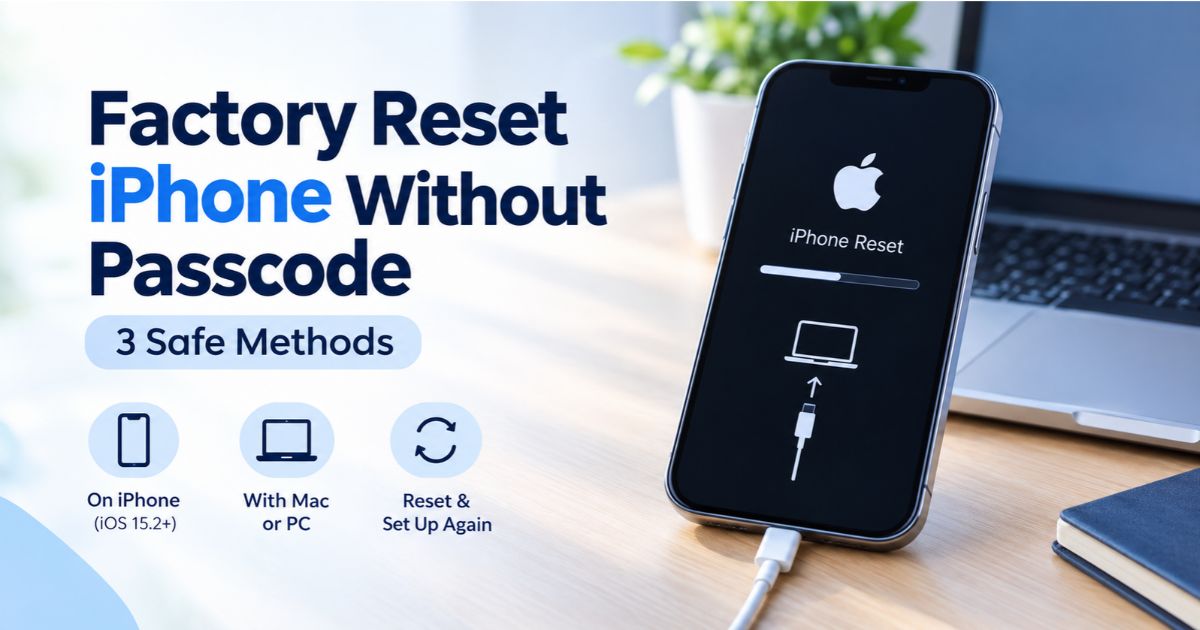
You can factory reset iPhone without passcode using Apple’s official recovery methods, even if you have forgotten your passcode or your device is locked. The method you should use depends on your iPhone model, iOS version, and whether you have access to another device or a computer. Once the reset is complete, you can set up your iPhone again and restore your data from an existing backup, if available.
Before you begin, understand that a factory reset erases the data stored on your iPhone. It does not remove Activation Lock, so you may still need the Apple Account credentials previously linked to the device. Use these methods only on an iPhone you own or are authorized to manage.
Key Takeaways
- Apple’s order is: Passcode Reset first, then a reset on the iPhone itself, then a reset with a computer.
- Passcode Reset only helps if you change your passcode in the last 72 hours.
- Every other method permanently erases the iPhone. Only a backup can bring the data back.
- The reset on the iPhone needs iOS 15.2 or later, Find My turned on earlier, an internet connection, and your Apple Account password.
- The computer method needs a Mac or Windows PC, a cable that can charge the phone, an internet connection, and up to 60 minutes.
- Activation Lock stays in place, so you still need the Apple Account password afterwards.
Before You Factory Reset iPhone Without Passcode
- Check your backup: You cannot create a new backup through a locked iPhone in the usual way. After resetting, you can restore data from an existing iCloud or computer backup. Content already synced with iCloud may return when you sign in with your Apple Account.
- Prepare your Apple Account password: You may need it to reactivate your iPhone after the reset. If you have forgotten your password, visit iforgot.apple.com to begin account recovery.
- Check your eSIM: If your iPhone runs iOS 16 or earlier and uses an eSIM, contact your carrier before resetting to confirm how to restore your cellular service. On iOS 17 or later, available reset options may let you keep or delete your eSIM.
- Stop entering random passcodes: Repeated incorrect attempts can trigger security delays or display an iPhone Unavailable screen. Depending on your settings, the device may also erase itself after too many failed attempts. Once locked out, use an official reset method instead of continuing to guess.
First, Try Passcode Reset (iOS 17 and Later)
When you change your passcode on iOS 17 or later, Apple keeps your previous passcode working for 72 hours. If you forgot a passcode you set recently, this recovers access without erasing anything.
- Enter wrong passcodes until the iPhone Unavailable screen appears.
- Tap Forgot Passcode? in the bottom corner.
- Tap Enter Previous Passcode.
- Enter your old passcode, then set a new one when asked.
If the option is missing, or the 72 hours have passed, move on to Method 1.
Method 1: Reset on the iPhone Without a Computer
This method follows Apple’s guide to resetting without a computer. You need iOS 15.2 or later, Find My turned on before you were locked out, an active cellular or Wi-Fi connection, and your Apple Account and password.
On iOS 17 or later:
- On the Lock Screen, enter passcodes until the Unavailable screen appears.
- Tap Forgot Passcode? This button only appears if you have a connection and Find My is on.
- On the Security Lockout screen, tap Start iPhone Reset to confirm.
- Enter your Apple Account password to sign out of the account on the iPhone.
- Tap Erase iPhone to permanently delete all data and settings. If you use an eSIM, you can choose to keep it or delete it.
- When the iPhone restarts, follow the on-screen setup, restore a backup if you have one, and set a new passcode.
On iOS 15.2 or iOS 16 the button is labeled Erase iPhone instead of Forgot Passcode?, and it appears under the same conditions. If you do not see either button, use Method 2.
Method 2: Reset With a Mac or Windows PC
Use this when the on-device option is not available. It follows Apple’s guide to resetting with a computer. You need a Mac or Windows PC, a cable that can charge your phone, an internet connection, and up to 60 minutes.
- Turn the iPhone off. On a model with Face ID, hold the Side button and the Volume Down button until the power-off slider appears, then drag it. On a model with a Home button, hold the Top or Side button until the slider appears.
- Enter recovery mode. Connect the cable to the computer first. Then connect it to the iPhone and quickly hold the Side button, and keep holding it through the Apple logo until a computer-and-cable image appears. This works for models with Face ID and for the iPhone 8, iPhone 8 Plus, and iPhone SE (2nd and 3rd generation). On the iPhone 7 and 7 Plus, hold Volume Down instead. On the iPhone 6s and earlier and the iPhone SE (1st generation), hold the Home button.
- On a Mac, open Finder, select the iPhone in the sidebar under Locations, allow the accessory to connect if asked, and choose Restore when you see Restore or Update.
- On Windows, open the Apple Devices app, select the iPhone in the sidebar, choose Trust if asked, click General, then Restore, and follow the on-screen steps. Apple Devices is a free download from the Microsoft Store.
- Wait for the download and restore. The iPhone software can take more than 15 minutes to download. If the iPhone leaves recovery mode meanwhile, let the download finish, turn the iPhone off, and enter recovery mode again.
- Set up the iPhone. When the Hello screen appears, disconnect the phone and set it up. Restore a backup if you have one.
If the buttons do not respond and you cannot reach the recovery screen, the phone may need service. With no computer available, Apple points you to an Apple Store or Apple Authorized Service Provider.
Method 3: Erase the iPhone With Find My
If Find My was on before the lockout, you can erase the iPhone remotely from another device. This is also the right method if the iPhone is not with you. The steps follow Apple’s iCloud guide.
- On a computer or another phone, go to icloud.com/find and sign in with your Apple Account. You can also use the Find My app on another Apple device that is signed in to the same account.
- Select the iPhone under All Devices.
- Choose Erase This Device and follow the prompts.
- If the iPhone is online, the erase begins right away. If it is offline, the erase begins the next time it connects.
Apple says that your Apple Account and password are required to reactivate a device after it has been erased this way.
Which Method Should You Use?
| Your situation | Best method |
|---|---|
| You changed the passcode in the last 72 hours (iOS 17 or later) | Passcode Reset |
| You see Forgot Passcode? or Erase iPhone, and you know your Apple Account password | Method 1 |
| No reset button appears, or the iPhone has no connection | Method 2 |
| The iPhone is lost or not with you, and Find My was on | Method 3 |
Activation Lock: What Happens After the Reset
Activation Lock turns on automatically when Find My is set up. Apple says your Apple Account password is required before anyone can turn off Find My, sign out, erase the device, or reactivate it after it has been erased. So after any reset, the iPhone will ask for the Apple Account that was set up on it.
If you forgot that password, reset it through Apple’s account recovery. Apple warns that if you cannot recover the account, you may be unable to use or reactivate the device.
If you bought the iPhone secondhand and it asks for someone else’s Apple Account, the phone is still linked to that person. Ask the seller to erase it completely and remove it from their account. Apple does not offer a way around Activation Lock, so avoid any paid service that claims to remove it.
After the Reset
Set the iPhone up, sign in with your Apple Account, and restore from an iCloud or computer backup if you have one. Choose a new passcode you will remember, and consider storing it in a password manager.
FAQs
Can I reset an iPhone without a passcode and without a computer?
Yes, on iOS 15.2 or later if the Forgot Passcode? or Erase iPhone option appears. It needs Find My turned on earlier, a connection, and your Apple Account password.
Why is there no reset option on my Unavailable screen?
The on-device option only appears when the iPhone has a cellular or Wi-Fi connection, you are signed in to your Apple Account, and Find My is on. If any of those is missing, use the computer method.
Will a factory reset remove Activation Lock?
No. After the reset you will still need the Apple Account that was set up on the iPhone.
Can I factory reset without losing my data?
No. A reset deletes everything on the iPhone. You can only get data back from a backup made earlier, or from content already stored in iCloud.
How long does the computer method take?
Apple says to allow up to 60 minutes. The software download alone can take more than 15 minutes.
Is it safe to use third-party unlock software?
Apple only supports the methods in this guide, so stick to them. Be careful with tools that promise to bypass the passcode or Activation Lock.
Final Thoughts
Try Passcode Reset first if you change your passcode recently. If not, reset the iPhone from its own Lock Screen, and use a computer or Find My when that option is missing. Every route erases the phone, and none of them gets around Activation Lock, so keep your Apple Account details and a backup within reach.
Recent Article : Black Dot on iPhone Camera: Causes and How to Fix It

Jennifer Aston is a passionate poetry curator and writer with a deep love for the written word. She believes poetry has the power to heal, inspire, and connect people across all walks of life. Through PoemSteric, she brings together timeless and modern verses for every emotion and every moment.