
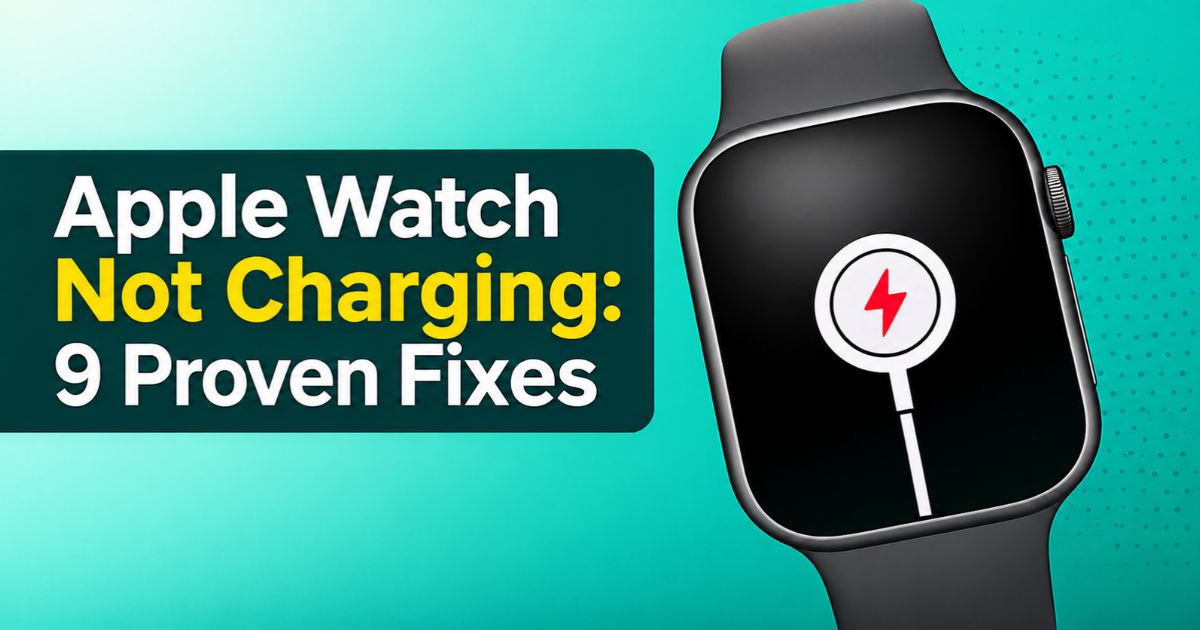
Apple Watch not charging can mean a loose connection, a misaligned charger, a deeply drained battery, a deliberate 80% pause, or occasionally a hardware fault. The cause is often simple, but guessing wastes time. This guide helps you match what you see on screen to the right test, change one component at a time, and know when to stop and contact Apple Support. Steps follow Apple’s current documentation, with model and software limits noted.
Quick Fixes to Try First
Start with the safest checks. They take a few minutes and solve many cases, though no fix works for every watch.
- Check the power source. Push the cable fully into the adapter and the adapter fully into a working outlet.
- Use the cable that came with your watch, the Apple Magnetic Charging Cable or USB-C Magnetic Fast Charging Cable, as Apple recommends.
- Remove plastic film. Apple says to remove any wrapping completely from both sides of the charger.
- Realign the watch. Lift it off and set it back. When the magnets align, a lightning bolt should appear.
- Take off bulky cases or covers that hold the watch away from the charger.
- Wait. A fully drained watch may need up to 30 minutes, according to Apple Support.
Why is My Apple Watch Not Charging?
Most cases come down to the connection between watch and charger, not a failed battery. Roughly in order of likelihood:
- Power problems: a dead outlet, loose plug, or damaged cable or adapter.
- Alignment and obstructions: a tilted watch, thick case, leftover plastic film, or a band that tips the watch off the puck.
- Debris: sweat, lotion, or dust on the watch back or charging surface.
- Accessory mismatch: an incompatible or faulty charger, or a hub that limits power.
- Battery optimization: charging that deliberately holds near 80%.
- Temperature: charging slows or stops when the watch is too hot or cold.
- Software hiccups and hardware faults: less common, so rule out the simpler causes first.
A single test rarely proves one cause, so the sections below narrow it down step by step.
What the Apple Watch Charging Icons Mean
What the screen shows tells you where to look, but a low-battery symbol does not mean the charger is broken.
- Red lightning bolt: the battery is too low to turn on. Once a charger connects, Apple says the bolt changes to a red bolt inside a ring.
- Charging cable icon or a blank screen: the watch may still be waking up. Apple says to charge it for up to 30 minutes.
- Green or yellow charging icon: the watch is charging. With Optimized Charge Limit active, an open charge ring appears instead.
- Nothing at all after 30 minutes: this is the signal that the connection, accessory, or watch needs investigating.
How to Fix an Apple Watch That Won’t Charge
Work through these in order. Change one thing at a time so you can tell what made the difference.
Check the Cable, Adapter, and Power Outlet
- Plug the adapter into a different wall outlet.
- Inspect the cable and adapter for fraying, bent connectors, burn marks, or looseness. Stop using anything damaged.
- Confirm the cable seats fully in the adapter.
- Connect the cable directly to the adapter, skipping hubs and multi-port chargers.
If the watch charges after one change, you have found the weak link.
Clean the Watch and Charger Safely
Apple’s guidance treats the watch and the charger differently.
For the watch: take it off the charger, then wipe it with a non-abrasive, lint-free cloth. Apple says you can lightly dampen the cloth with fresh water if necessary, then dry the watch. Never clean it while it charges.
For the charging puck: disconnect it from both the watch and the power adapter, wipe the charging surface with a damp, nonabrasive cloth, and dry it with a lint-free cloth before charging again. Apple’s handling guide says not to use cleaning products on the charging surface, so skip alcohol and sprays.
Reposition the Watch and Remove Obstructions
Lay the watch back flat against the charger and let the magnets settle it. If no lightning bolt appears, lift the watch and try again. Remove protective cases and any film on the watch back. If you use the Magnetic Charging Dock or MagSafe Duo with a 44 mm, 45 mm, or 49 mm model, Apple says to try a different angle or lay the charger flat. With Apple Watch Ultra or later that still connects unreliably on a flat dock, Apple suggests removing the band first.
Wait for a Fully Depleted Watch to Respond
A completely empty watch needs some charge before it can show anything. Apple says you may need to leave it connected for up to 30 minutes before the lightning bolt appears or the watch turns on.
Leave it on one verified setup and check back after the full wait. Waiting does not recover every watch, but it rules out the most common false alarm.
Restart or Force-Restart the Watch
Try a normal restart first. Press and hold the side button, drag the Power Off slider, then hold the side button again until the Apple logo appears. Apple notes you cannot restart the watch while it is charging, so remove it from the charger first.
If the watch is unresponsive, force restart it: hold the side button and Digital Crown together for at least 10 seconds, until the Apple logo appears. Apple advises doing this only as a last resort, and never while a watchOS update is installed.
Test Another Compatible Charger
This is the clearest way to separate a charger problem from a watch problem. Change one component per test and note the result.
- Keep the same cable and outlet, but swap the adapter.
- Keep the adapter, but try a different Apple Watch cable or dock.
- If possible, try your cable and adapter with another Apple Watch.
A watch that charges on a second setup points toward the first charger. A watch that fails on two known-good setups points toward the watch. Treat both as strong clues, not proof.
Apple Watch Not Charging Past 80%
A pause near 80% is often a feature, not a fault. According to Apple’s Optimized Battery Charging page, the watch may delay charging past 80% in certain situations, holding between 75% and 80%. It learns your routine so it can finish charging before you usually remove it.
Two related features exist:
- Optimized Battery Charging is on by default, and Apple says it is always on for Series 9 or later and every Ultra.
- Optimized Charge Limit requires watchOS 10 or later and works on Apple Watch SE and later, Series 6 and later, and Ultra. An open charge ring appears when it is active, and it may reach 100% on some days and less on others.
To charge fully now, tap the watch while it charges, tap the charging icon, and choose Charge to Full Now.
A real fault looks different: the percentage does not rise at all, or no charging icon appears.
Apple Watch Charging Slowly or Stopping and Starting
Slow charging often comes from the setup rather than the watch. Apple’s charge-speed guidance says the fastest results come from a USB-C Power Delivery charger and the USB-C cable that came with the watch.
Common causes include:
- Hubs and shared ports: multi-port chargers, computers, USB hubs, and car ports can reduce power.
- Older cables: Apple says a cable from a previous watch may charge more slowly.
- Use while charging: an active display, updates, or media transfers lengthen charging.
- Temperature: the watch can reduce charging speed when it is too hot or cold.
With watchOS 26 or later, you may see a Slow Charger message under Settings > Battery. Apple says this does not mean anything is wrong with your watch or charger; a higher-wattage charger could simply be faster.
Per Apple’s fast charge page, fast charging works on Apple Watch Series 7 and later, SE 3, and Ultra and later. It needs the USB-C Magnetic Fast Charging Cable and a compatible USB-C adapter, and chargers labeled “WPT” do not support it. Apple’s MagSafe Duo page notes no fast charging on some models, so check yours. Apple says results vary, so no universal charging time applies.
If charging starts and stops, check whether it follows cable movement, a shifting watch, debris, or warmth.
What to Do If the Watch Gets Too Hot
A slightly warm watch is normal, but a temperature warning needs action. Apple says an overheated watch shows a red thermometer and the time, and charging may slow or stop.
- Remove the watch from your wrist and from the charger.
- Move it to a cooler place and let it cool down on its own. Apple says it turns back on once it has cooled.
- Keep the watch, cable, and adapter uncovered and ventilated while charging, away from direct sunlight and parked cars.
Do not use hair dryers, refrigerators, freezers, or ice to change its temperature. Apple’s temperature guidance lists 32° to 95° F (0° to 35° C) as the best range for Series and SE models, and a watch that overheats repeatedly during normal charging deserves professional attention.
How to Tell If the Charger or Watch Is Faulty
Use this table to translate test results into the next step. It suggests likely causes, not confirmed diagnoses.
| Symptom or test result | What it may indicate | What to try next |
| Watch charges on a second charger | Original cable, puck, or adapter | Replace the original |
| Charges only at certain cable angles | Worn cable or loose connection | Replace the cable |
| Fails on a different outlet and adapter | Not the outlet or adapter | Test another cable, then another watch |
| Another Apple Watch charges on your setup | Your watch, not the charger | Restart, wait 30 minutes, contact Apple |
| Nothing works after 30 minutes on a verified setup | Possible watch or battery fault | Force restart once, then seek service |
| Charging stops only when warm | Temperature management | Cool the watch and ventilate the setup |
| Swelling, lifted screen, or burn marks | Possible damage | Stop charging and contact Apple |
When to Contact Apple Support
More troubleshooting is unlikely to help if the watch fails on two known-good setups, stays blank after 30 minutes and a force restart, or repeatedly shows temperature warnings.
Seek support right away, and stop charging, if you see physical damage, a swollen battery, a lifted display, scorch marks, exposed wiring, or unusual heat.
Apple’s troubleshooting page points to Apple’s service options when a watch still will not work. Leave internal inspection to Apple or an Apple Authorized Service Provider, and never open the watch yourself.
FAQs
Why is my Apple Watch not charging even when connected?
Usually the connection is imperfect: misalignment, debris, film, a case, or weak power. Work through the quick fixes, then test another charger. A blank, drained watch may need up to 30 minutes first.
How long should I charge a completely dead Apple Watch?
Apple says up to 30 minutes may pass before the lightning bolt appears or the watch turns on. Full charging takes longer and varies.
What does the red lightning bolt mean on an Apple Watch?
It means the battery lacks the power to turn on. With a charger connected, it changes to a red bolt inside a ring. It signals a low battery, not a broken charger.
Why does my Apple Watch stop charging at 80%?
Optimized Battery Charging or Optimized Charge Limit may be holding the charge to reduce battery wear. Tap the charging icon and choose Charge to Full Now when you need 100%.
How do I know if my Apple Watch charger is broken?
Change one component at a time. If the watch charges on another cable or adapter, the first one is the likely cause. If another charger fails too, suspect the watch.
Can I charge an Apple Watch with a regular wireless charger?
A pad designed only for phones is not an Apple Watch charger. Apple documents its magnetic cables, Magnetic Charging Dock, and MagSafe Duo. Check that any accessory explicitly lists Apple Watch support.
Why is my Apple Watch charging so slowly?
Older cables, hubs, low-power adapters, use while charging, or temperature. Apple says a Slow Charger message is not a fault.
What should I do if my Apple Watch gets hot while charging?
Remove it from the charger and your wrist, move it somewhere cooler, and let it cool naturally.
When should I contact Apple Support about charging problems?
Contact Apple if the watch fails on two known-good setups, repeatedly overheats, shows damage, or stays unresponsive after waiting and a forced restart.
Final Thoughts
Follow the sequence: confirm power, clean and align, wait for a drained watch, restart if needed, then change one charger component at a time. An 80% pause or Slow Charger message is not automatically a fault. If the watch fails on two known-good setups, overheats repeatedly, or shows damage, stop troubleshooting and contact Apple Support or an Apple Authorized Service Provider.

Jennifer Aston is a passionate poetry curator and writer with a deep love for the written word. She believes poetry has the power to heal, inspire, and connect people across all walks of life. Through PoemSteric, she brings together timeless and modern verses for every emotion and every moment.