
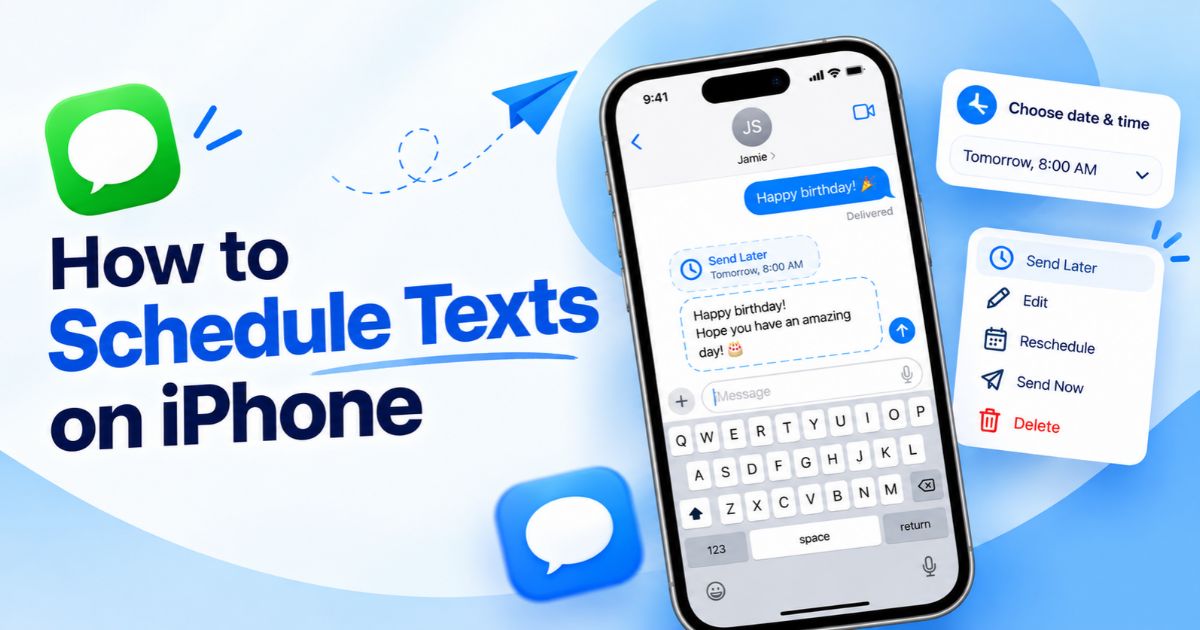
Introduction
You can schedule texts on iPhone with Send Later, a feature built into the Messages app. You write the message now, choose a date and time, and your iPhone delivers it for you. It is handy for birthday wishes, reminders, and messages you want someone to see at a sensible hour.
There is one important rule: Send Later works with iMessage. Apple introduced it with iOS 18, and it is still part of Messages in iOS 26 and iOS 27. This guide shows how to schedule a text, how to edit or cancel it, how to tell whether your chat qualifies, and what to do if Send Later is missing.
Key Takeaways
- Open Messages, tap the plus (+) button and choose Send Later to schedule an iMessage.
- You can schedule up to 14 days ahead.
- You can edit, reschedule, send now or delete a scheduled message before it is delivered.
- Send Later needs iMessage. Green-bubble chats (SMS or RCS) cannot use it.
- A scheduled iMessage can still go out if your devices are offline at the scheduled time.
What Send Later Does on iPhone
Send Later lets you schedule an iMessage for any time up to 14 days from now. Apple announced it with iOS 18 in June 2024 (see Apple’s iOS 18 announcement). Apple’s iPhone User Guide now has a Send Later page for iOS 18, iOS 26 and iOS 27. Menu layout can vary a little between versions, so if a button is not where you expect it, look for Send Later inside the + menu.
Here is how it works behind the scenes. When you schedule a message, it is encrypted and kept on Apple’s servers until it is time to send. Once it is delivered, it is removed from those servers. This is why the message can still be delivered when your iPhone, iPad or Mac is offline at the scheduled time.
What you need:
- An iPhone running iOS 18 or later
- iMessage turned on
- A chat that uses iMessage (usually blue bubbles)
- An internet connection whenever you edit, reschedule or delete a scheduled message
How to Schedule a Text on iPhone, Step by Step
The steps below follow Apple’s instructions for scheduling a message on iPhone, with a little extra detail.
Step 1: Open the conversation
Open Messages and choose the chat, or tap the compose button to start a new one. Check the name before you write. If the message field says iMessage and the send arrow is blue, the chat supports scheduling.
Step 2: Tap the plus button and choose Send Later
Tap the + button beside the message field, then tap Send Later. If you do not see it straight away, tap More or scroll the list, because the order of options can differ from one iPhone to another.
Step 3: Pick the date and time
Tap the time that appears to open the scheduler. Choose the date and time you want. You can go up to 14 days ahead. Check AM and PM, especially for early morning messages.
Step 4: Type your message
The border of the text field turns into a dashed line, and the delivery time appears above your message. Type the text you want to send.
Step 5: Tap Send
Tap the send arrow. The message stays in the conversation with a dashed outline until it is delivered. When it goes out, the bubble becomes a solid colour and the dashed line disappears.
Example: Write a birthday message in the evening, then schedule it for 8:00 a.m. the next day. You can schedule more than one message in the same chat, each with its own time.
Which Messages Can You Schedule?
iMessage, SMS and RCS in simple words
The Messages app can send three kinds of text:
- iMessage: Apple’s own service. It works between Apple devices over the internet and shows blue bubbles.
- SMS: The old carrier text message. It shows green bubbles.
- RCS: A newer standard that improves texting between iPhone and Android, with features such as typing indicators, read receipts and higher-quality photos. It also shows green bubbles.
A quick way to check a chat: look at the message field. iMessage chats say iMessage. SMS chats say Text Message. RCS chats say Text Message with RCS next to it.
Send Later and green-bubble chats
Apple’s Send Later instructions require iMessage. If your chat is green, you will not be able to schedule the message with Send Later. This also applies to most Android contacts, because they use RCS or SMS.
iOS 27 has narrowed the gap between iMessage and RCS, with inline replies and fuller Tapback support in cross-platform chats, on top of end-to-end encryption for RCS that arrived earlier in 2026. iOS 27 also brings automatic retry for failed messages. These upgrades do not change the Send Later rule, which Apple still describes as an iMessage feature. If you need to schedule a green-bubble text, use one of the workarounds later in this guide.
Check your iOS version
- Open Settings.
- Tap General.
- Tap About.
- Look at iOS Version.
If you have a version older than iOS 18, go to Settings > General > Software Update. Before you update, backup your iPhone, plug it in, and make sure you have enough free storage for the download.
How to Edit, Reschedule, Send Now or Cancel a Scheduled Text
You can change a scheduled message at any time before it is delivered. You must be online to do it.
- Edit the text: Open the chat, touch and hold the scheduled bubble, tap Edit, make your change and confirm it.
- Change the time: Tap Edit beside the scheduled date above the message, choose Edit Time, pick a new date and time, then tap away to confirm.
- Send it now: Tap Edit beside the scheduled date and choose Send Message.
- Cancel it: Touch and hold the scheduled bubble and tap Delete. The message will not be sent.
If a chat has several scheduled messages, check the time above each one before you delete or change it.
Send Later Is Missing or Not Working: Fixes to Try
A missing Send Later option does not mean your iPhone is faulty. Work through these checks in order.
- Check your iOS version. You need iOS 18 or later. Update if you are on an older version.
- Check that the chat uses iMessage. Green bubbles and a field labelled Text Message mean SMS or RCS, which Send Later does not support.
- Check that iMessage is on. Open Settings > Apps > Messages (on older layouts, Settings > Messages) and make sure iMessage is switched on.
- Look inside the + menu. Tap More or scroll the list. Send Later may sit lower than other Messages apps.
- Check your connection. You need internet to schedule, edit, reschedule or delete a message.
- Restart. Close Messages and reopen it. If that does not help, restart your iPhone and try again.
If the option is still missing, try starting a new conversation with a contact you know uses iMessage.
Other Ways to Schedule a Text on iPhone
Use these only when Send Later does not fit, for example when you are on iOS 17 or earlier, or the chat is green.
Shortcuts automation
- Open the Shortcuts app and tap the Automation tab.
- Tap + to create a new automation and choose Time of Day.
- Set the time and how often it repeats. If you only want to send once, delete the automation after it runs.
- Tap Next, then Add Action, and search for Send Message.
- Choose the recipient and type your message.
- Tap Next. If you see the option, choose Run Immediately instead of asking before running, then tap Done.
A Shortcuts automation is not the same as Send Later. Depending on your iOS version and settings, it may ask for confirmation or need your iPhone to be unlocked. Test it with a harmless message first.
Reminders
If you only need a nudge, set a reminder in the Reminders app for the time you want to text. It will not send the message for you, but it keeps you from forgetting.
Third-party scheduling apps
Some apps send messages for you through their own service. Others only remind you to tap Send. Before you use one, read what permissions it asks for, check whether messages come from your own number, and avoid sharing private conversations with an app you do not trust.
Smart Ways to Use Scheduled Texts
- Birthdays and anniversaries: Write early, deliver on the morning of the day.
- Appointment and bill reminders: Schedule a short note a day before.
- Different time zones: Send a message so it arrives at a normal hour for the other person.
- Work messages: Write when you have time and deliver during working hours.
- Late-night thoughts: Schedule for morning so you do not wake someone.
Avoid using scheduled texts for anything urgent or sensitive. Leave a buffer and confirm important plans in a call or a live chat.
Mistakes to Avoid
- Choosing the wrong date or mixing up AM and PM
- Scheduling in the wrong chat
- Assuming every green-bubble chat can use Send Later
- Trying to edit while offline
- Trusting an untested Shortcuts automation for something important
FAQs
Can I schedule a text on my iPhone without an app?
Yes. Send Later is built into Messages, so you do not need a separate app. It works for iMessage chats on iOS 18 or later.
How far ahead can I schedule a message?
Up to 14 days.
Does Send Later work on iOS 26 and iOS 27?
Yes. Apple’s iPhone User Guide includes a Send Later page for iOS 18, iOS 26 and iOS 27. Small interface details may differ.
Can I edit a scheduled text?
Yes. Touch and hold the scheduled bubble and tap Edit. You can also change the time, send it immediately or delete it, as long as you are online and it has not been delivered yet.
Why can’t I see Send Later?
The usual reasons are an iOS version older than iOS 18, a green-bubble chat (SMS or RCS), iMessage being switched off, or the option sitting lower in the + menu.
Can I schedule a text to an Android phone?
Not with Send Later, because Android chats normally use RCS or SMS. Use a Shortcuts automation, a reminder or a trusted third-party app instead.
Will the message send if my iPhone is off or offline?
Apple says a scheduled iMessage is delivered even if all your devices are offline, because the message waits on Apple’s servers. You still need to be online to edit, reschedule or delete it.
Final Thoughts
Scheduling a text on iPhone takes less than a minute: open the chat, tap +, choose Send Later, set the time and send. Remember that it needs iMessage, works up to 14 days ahead, and can be edited or cancelled until delivery. If your chat is green or your iOS is older, a Shortcuts automation or a reminder can fill the gap.
Recent Article : Why Is There a Purple Light on My iPhone? Fixes

Jennifer Aston is a passionate poetry curator and writer with a deep love for the written word. She believes poetry has the power to heal, inspire, and connect people across all walks of life. Through PoemSteric, she brings together timeless and modern verses for every emotion and every moment.