
Introduction
If your MacBook Pro backlit keyboard is not lighting up, you can usually turn it on from System Settings > Keyboard, from Control Center, or with the keyboard brightness keys if your model has them. If the light still stays off, an automatic lighting setting, the inactivity timer, or a hardware problem may be the cause.
This guide shows how to turn on the keyboard light, adjust its brightness, set automatic lighting, and troubleshoot common problems. The steps follow current macOS (Tahoe) wording. Menu names may differ slightly on older versions.
Key Takeaways
- Open Apple menu > System Settings > Keyboard and drag the Keyboard brightness slider to the right.
- Not every model has dedicated keyboard brightness keys, so the slider and Control Center are the most reliable controls.
- Turn on Adjust keyboard brightness in low light if you want the Mac to control the light for you.
- Check Turn keyboard backlight off after inactivity if the light switches off when you stop typing.
- If the backlight stays off after troubleshooting, contact Apple Support or an authorized service provider.
1. How to Turn On the MacBook Pro Backlit Keyboard
The easiest method is through macOS settings. It works even if your MacBook Pro has no keyboard brightness keys.
- Click the Apple menu in the top-left corner.
- Select System Settings.
- Click Keyboard in the sidebar (you may need to scroll down).
- Find the Keyboard brightness slider.
- Drag the slider to the right to increase the backlight.
According to Apple, dragging the slider all the way to the left turns the backlight off. If the keys are dark, the slider may simply be at its lowest setting.
Add Keyboard Brightness to the menu bar or Control Center
You can also change the light without opening System Settings. Go to System Settings > Control Center, find Keyboard Brightness, then turn on Show in Menu Bar or Show in Control Center. After that, click the icon and drag the slider.
For the official instructions, see Apple’s guide to turning Mac keyboard backlighting on or off.
2. How to Adjust MacBook Pro Keyboard Brightness
Sometimes the light is on but too dim to notice. The controls you have depend on your model.
Use the keyboard brightness keys
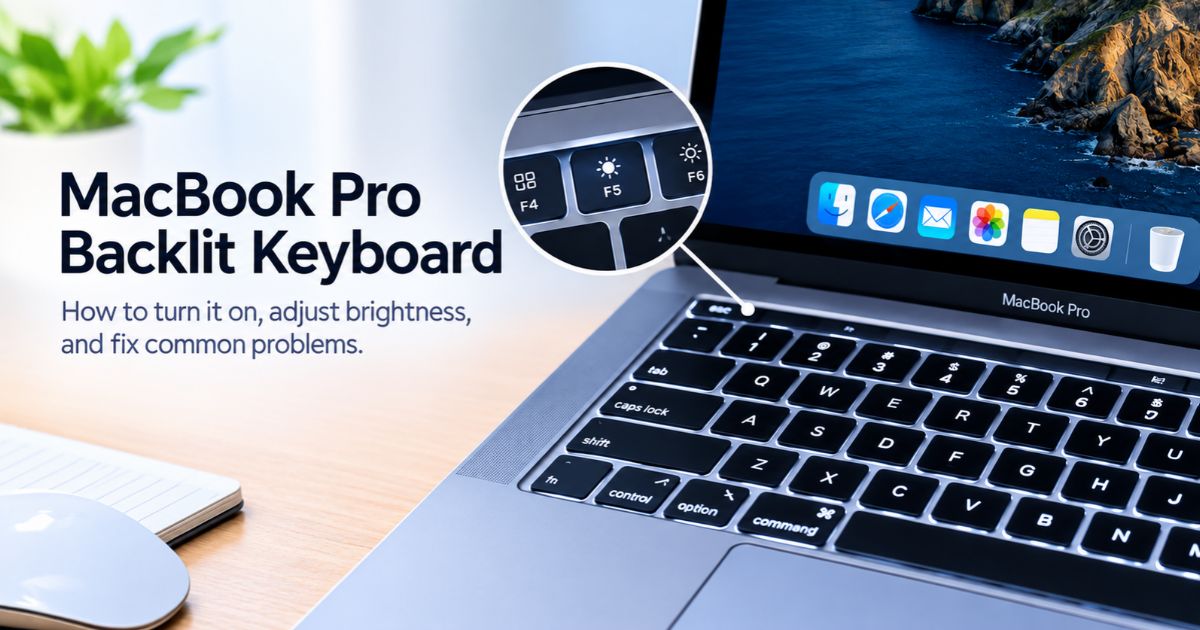
Some MacBook Pro models have keys for increasing and decreasing keyboard brightness, usually marked with a keyboard-light symbol on the top row. On some older models these are the F5 and F6 keys.
- Press the increase key to make the keys brighter.
- Press the decrease key to dim them.
- Keep pressing the decrease key to turn the backlight off.
Do not confuse these with the display brightness keys, which only change the screen.
Use the Touch Bar Control Strip
On MacBook Pro models with a Touch Bar, expand the Control Strip, then tap the increase or decrease brightness button. Touch and hold the decrease button to turn the light off.
Use System Settings
If your keyboard has no brightness keys, use System Settings > Keyboard > Keyboard brightness, or the Control Center slider described above.
3. How to Enable Automatic Keyboard Backlighting
Your MacBook Pro can adjust the keyboard light when the room is dark.
- Open Apple menu > System Settings.
- Click Keyboard.
- Turn on Adjust keyboard brightness in low light.
Apple notes that the light sensor is at the top of the computer, near the camera. Keep that area uncovered, because a sticker or camera cover could affect how well it detects low light.
If you prefer full control, turn this option off and use the brightness slider instead.
4. How to Stop the Keyboard Light From Turning Off
Your Mac can switch the backlight off after a period of inactivity. This is a setting, not necessarily a fault.
- Open Apple menu > System Settings.
- Click Keyboard.
- Click the pop-up menu next to Turn keyboard backlight off after inactivity.
- Choose a longer time.
The available time choices may vary by macOS version and model.
5. MacBook Pro Backlit Keyboard Not Working? Try These Fixes
Work through these checks before assuming the keyboard needs repair.
Check the brightness level
Open System Settings > Keyboard and drag Keyboard brightness to the right. A slider at the far left is the most common reason for a dark keyboard.
Check automatic lighting
If Adjust keyboard brightness in low light is on, the backlight may stay off in a bright room. Move the slider manually, or turn the option off to test. Also make sure the sensor area near the camera is not covered.
Check the inactivity setting
A short inactivity time can make the light disappear when you pause typing. Choose a longer time and test again.
Restart your MacBook Pro
A restart can clear temporary software problems.
- Save your open work.
- Click the Apple menu.
- Select Restart.
- After startup, check the keyboard brightness settings again.
If the backlight works on the startup or login screen but turns off once you log in, a settings or software cause is more likely than failed hardware. This is a clue, not proof.
Check for macOS updates
Open System Settings > General > Software Update. If an update is available, back up your data first, then install it. An update will not fix a damaged keyboard, but it can resolve software bugs.
Intel-based MacBook Pro only: reset the SMC
If you have an Intel-based MacBook Pro, resetting the System Management Controller (SMC) is a common Apple-recommended step for hardware-related behavior. Follow Apple’s official instructions for your exact model. Macs with Apple silicon do not use this step, so restarting is enough.
Confirm your model supports the control you are using
Controls differ between generations. If a key or setting is missing, confirm your exact model and macOS version, then use the slider in System Settings.
If none of these checks helps, contact Apple Support or an authorized service provider for diagnosis.
6. Why Does My MacBook Pro Keyboard Light Keep Changing?
- Automatic brightness: The Mac may raise or lower the light as room lighting changes.
- Inactivity timer: The light turns off after the time you set.
- Manual changes: A brightness key, Touch Bar button, or slider adjustment changes the level.
- Model differences: Available controls depend on your MacBook Pro generation and macOS version.
Check these settings before resetting or reinstalling macOS.
7. Do All MacBook Pro Models Have the Same Keyboard Controls?
Most MacBook Pro models in use today have a backlit keyboard, but the controls differ:
- Models with keyboard brightness keys: Use the keys on the top row.
- Models with a Touch Bar: Use the expanded Control Strip.
- Models without dedicated keys: Use System Settings or Control Center.
Before relying on a shortcut, identify your model. If you are buying a used MacBook Pro, test the backlight and its controls before you pay.
FAQs
How do I turn on my MacBook Pro backlit keyboard?
Open Apple menu > System Settings > Keyboard and drag the Keyboard brightness slider to the right. If your model has brightness keys, you can use them instead.
Why is my MacBook Pro keyboard not lighting up?
The brightness may be too low, automatic lighting may be keeping it off in a bright room, or the inactivity timer may have switched it off. Check these settings first, then restart. If the light still does not work, get it diagnosed.
Can I adjust MacBook Pro keyboard brightness without function keys?
Yes. Use the Keyboard brightness slider in System Settings, or add Keyboard Brightness to the menu bar or Control Center.
Why does my MacBook keyboard light turn off automatically?
Your Mac may be set to turn the backlight off after inactivity. Change Turn keyboard backlight off after inactivity to a longer time.
Where is the keyboard light sensor on a MacBook Pro?
Apple says it is at the top of the computer, near the camera. Keep it uncovered if you use automatic lighting.
Does the MacBook Pro keyboard backlight affect battery life?
The backlight uses some power, so a lower brightness or a shorter inactivity time can help conserve battery. The real effect depends on your model and usage.
Can I repair a MacBook Pro backlit keyboard myself?
Start with the settings and checks above. If the backlight still fails, get professional diagnosis instead of opening the laptop without the right tools and training.
Final Thoughts
If your MacBook Pro backlit keyboard is not working as expected, start with System Settings > Keyboard. Raise the brightness, review automatic lighting, and check the inactivity timer before trying other fixes.
Controls vary between models and macOS versions. If the settings do not restore the backlight, contact Apple Support or an authorized service provider.
Recent Article : How to Get More Storage on iPhone: 9 Easy Fixes

Jennifer Aston is a passionate poetry curator and writer with a deep love for the written word. She believes poetry has the power to heal, inspire, and connect people across all walks of life. Through PoemSteric, she brings together timeless and modern verses for every emotion and every moment.