
Introduction
Knowing how to hard restart iPhone can help when your device freezes, the touchscreen stops responding, or your iPhone will not turn off normally. A hard restart, also called a force restart, forces your iPhone to reboot without deleting your photos, apps, messages, or other personal data. However, you may lose unsaved changes in an open app. The button combination varies by iPhone model, so follow the steps that match your device to restart it safely.
Key Takeaways
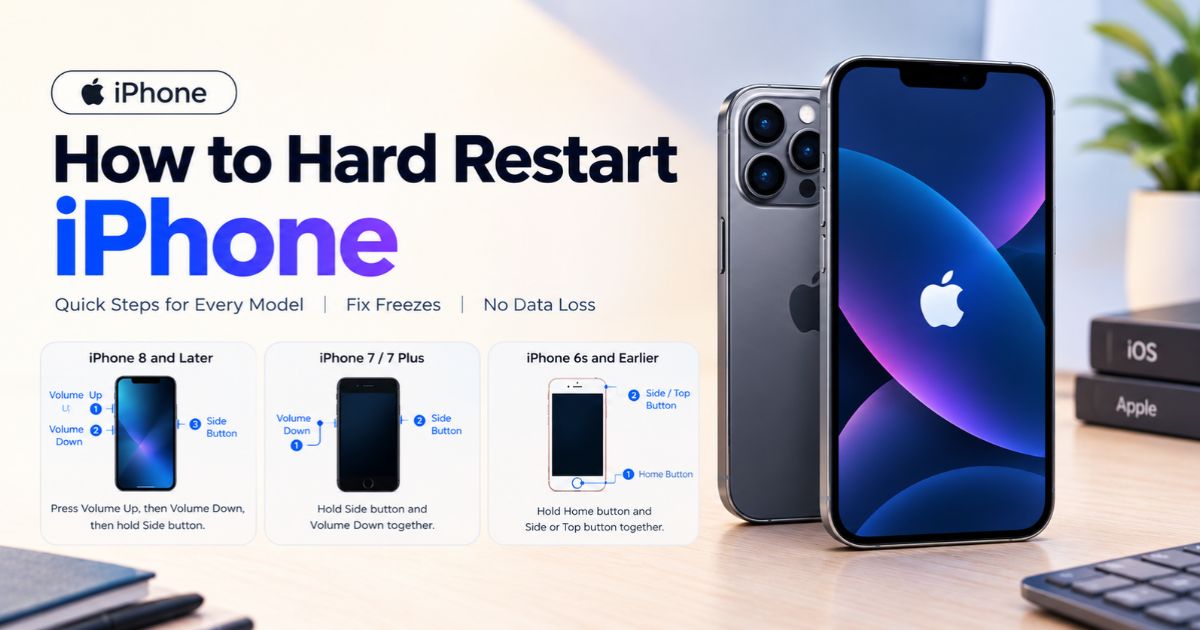
- iPhone 8 and later, including iPhone SE (2nd and 3rd generation): quickly press Volume Up, quickly press Volume Down, then hold the Side button until the Apple logo appears.
- iPhone 7 and iPhone 7 Plus: hold the Side button and the Volume Down button together until the Apple logo appears.
- iPhone 6s and earlier, including iPhone SE (1st generation): hold the Home button and the Side or Top button together until the Apple logo appears.
- Keep holding until you see the logo. Apple says it can take longer than 10 seconds.
- A force restart does not erase your data. A factory reset does.
- If the iPhone still will not start, charge it for an hour and try again.
First, Find Your iPhone Model
A Home button is not a reliable clue. The iPhone 8, iPhone 8 Plus, and iPhone SE (2nd and 3rd generation) all have Home buttons, yet they use the three-step volume sequence. If you can open Settings, go to General > About and check Model Name. If you cannot, Apple’s “Identify your iPhone model” support page shows every model by its design.
How to Hard Restart iPhone 8 or Later
This covers every iPhone with Face ID, plus the iPhone 8, iPhone 8 Plus, and iPhone SE (2nd and 3rd generation).
- Quickly press and release the Volume Up button.
- Quickly press and release the Volume Down button.
- Press and hold the Side button.
- Keep holding it, even if the screen goes black or the power-off slider appears.
- Let go when the Apple logo shows up.
The two volume presses should be quick taps, one after the other. The Side button is the only one you hold.
How to Hard Restart iPhone 7 or iPhone 7 Plus
- Press and hold the Side button and the Volume Down button at the same time.
- Keep holding both until the Apple logo appears, then release them.
Do not use the iPhone 8 sequence on an iPhone 7. They are different.
How to Hard Restart iPhone 6s, iPhone SE (1st Generation), or Earlier
- Press and hold the Home button together with the Side button (iPhone 6s) or the Top button (iPhone SE 1st generation).
- Keep holding both until the Apple logo appears, then release them.
Try a Normal Restart First if You Can
If the phone still responds, a normal restart is the gentler option, based on Apple’s restart instructions.
- iPhone X and later: press and hold either volume button and the Side button until the power-off slider appears. Drag the slider, wait 30 seconds for the phone to turn off, then hold the Side button until the Apple logo appears.
- iPhone 6, 7, 8, and SE (2nd and 3rd generation): hold the Side button until the slider appears, then follow the same steps.
- iPhone SE (1st generation) and iPhone 5 or earlier: hold the Top button instead.
You can also shut down from Settings > General > Shut Down.
Restart vs. Force Restart vs. Erase
| Action | When to use it | Erases your data? |
| Normal restart | The iPhone still responds | No |
| Force restart (hard restart) | The iPhone is frozen, unresponsive, or will not turn off | No |
| Erase All Content and Settings, or a restore with a computer | You want to wipe the iPhone completely | Yes |
You may also see the phrase “hard reset” online. Apple’s term is force restart, and some websites use “hard reset” for erasing a phone. Check what the steps actually do before you follow them.
What to Do if Your iPhone Will Not Restart
The steps below follow Apple’s guide for an unresponsive iPhone.
- Charge it for one hour. Plug the iPhone into a working charger, wait an hour, then try the force restart again.
- Check the charging hardware. If a low-battery image appears on the screen, check the cable, power adapter, and outlet. Apple then says to charge for 30 minutes or until the iPhone starts.
- Repeat the correct sequence for your model. On newer iPhones, the two volume presses must be quick and separate, and you must keep holding the Side button until the logo appears.
- Use recovery mode if it is stuck on the Apple logo. Connect the iPhone to a computer and put it in recovery mode. When the computer offers Update or Restore, choose Update first. Update tries to reinstall iOS without erasing your data, while Restore erases the iPhone. Apple’s guide to resetting an iPhone with a computer shows the recovery-mode buttons for each model.
- Get service. If it still will not turn on, Apple says you might need service. Contact Apple Support or visit an Apple Store or Apple Authorized Service Provider.
If Your iPhone Keeps Freezing
One freeze is not unusual. Repeated freezes deserve a closer look. Install the latest iOS update (Settings > General > Software Update), update your apps, and make sure the phone is not almost out of storage. If it keeps happening after that, contact Apple Support, because a recurring problem can point to a hardware fault.
FAQs
Does a hard restart delete anything on my iPhone?
No. A force restart does not erase your data. You may lose unsaved changes in the app you were using.
How long should I hold the Side button?
Until the Apple logo appears. Apple says this can take longer than 10 seconds.
Is a hard restart the same as a hard reset?
Not necessarily. Apple calls the button sequence a force restart. “Hard reset” is used inconsistently online and sometimes means erasing the phone, which is a different action.
Will a force restart remove a forgotten passcode?
No. After any restart, the iPhone asks for your passcode before Face ID or Touch ID can be used.
My iPhone screen is black. Should I force restart it?
Yes, try the sequence for your model. If nothing happens, charge it for an hour and try again before seeking service.
Can I force restart an iPhone too often?
It is a standard troubleshooting step, but it is meant for a frozen phone, not daily use. If you need it often, look into the underlying cause.
Final Thoughts
For an iPhone 8 or later, a hard restart is Volume Up, Volume Down, then hold the Side button until the Apple logo appears. The iPhone 7 and older models use different buttons, so check your model first. If the phone will not respond after charging, use recovery mode or get service rather than erasing it.
Recent Article : How to Connect PS5 Controller to iPhone (Easy Steps)

Jennifer Aston is a passionate poetry curator and writer with a deep love for the written word. She believes poetry has the power to heal, inspire, and connect people across all walks of life. Through PoemSteric, she brings together timeless and modern verses for every emotion and every moment.