
Introduction
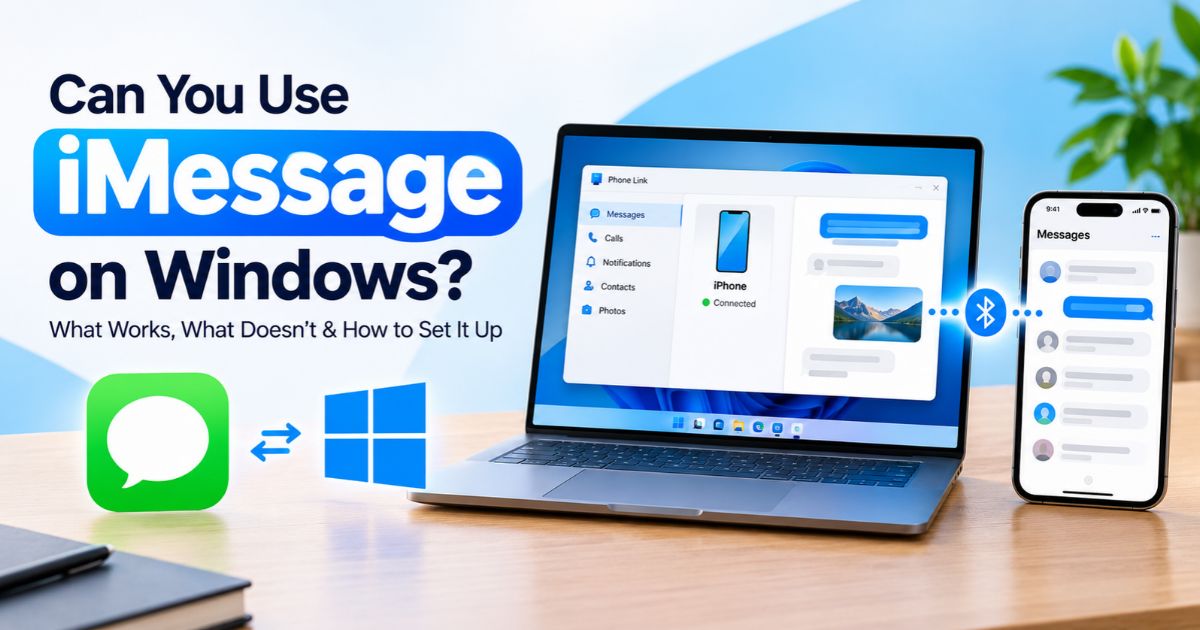
Many people who own an iPhone and a Windows PC wonder whether they can read and reply to texts on the bigger screen. Apple does not provide a full native Messages app for Windows, so using iMessage on Windows is not as simple as installing an app. However, Microsoft’s Phone Link can connect a supported iPhone to a Windows PC and provide access to certain messages, calls and notifications. Its abilities are limited compared with Messages on an iPhone or Mac, so it helps to know the boundaries before you start.
Key Takeaways
- Use Microsoft’s Phone Link on the PC and Link to Windows on the iPhone.
- Pairing generally uses Bluetooth and requires permissions on the iPhone.
- Phone Link is not a complete iMessage client. History, group chats and media may be limited.
- Availability depends on your device, Windows version, iOS version and region.
What You Can Do
With a supported setup, Phone Link can show notifications and support selected messaging, calling and contact features. Think of it as a bridge for some phone functions, not a copy of Apple’s Messages app. For anyone hoping to rely on iMessage on Windows for daily conversations, expect a narrower experience: older conversations may not appear, group threads and photos or videos may not behave the way they do on the iPhone, and some features may change as Microsoft and Apple update their software.
What You Cannot Expect
Phone Link does not make Windows a fully supported iMessage platform. Certain message types may be restricted, and some conversations may behave differently or not appear at all. If you need complete iMessage functionality, including full history, reactions, effects and rich attachments, the iPhone or another Apple device remains the most reliable option.
How to Set Up Phone Link with an iPhone
Before starting, update Windows and read Microsoft’s current Phone Link requirements, because supported iOS and Windows versions change over time. Then:
- Open Phone Link on the PC and choose the iPhone option if it is shown.
- Scan the QR code with your iPhone camera to open the Link to Windows pairing page.
- Confirm the Bluetooth pairing request on both the PC and the iPhone.
- Approve the permissions the iPhone requests.
The exact screens can change whenever Microsoft updates the app, so follow the on-screen prompts rather than relying on memorized steps.
Allow the Required Permissions
After pairing, follow Phone Link’s instructions for notifications, contacts and message access. On the iPhone, these options usually sit in Settings > Bluetooth, where you tap the information button next to the paired PC and review toggles such as Show Notifications and Sync Contacts. Keep Bluetooth on for both devices and keep the iPhone within range. If you denied a permission earlier, revisit these settings or remove the connection and pair again.
Troubleshooting Phone Link Messages
If messages do not appear, confirm that Bluetooth is on and that the devices are still paired. Update Phone Link and Windows, restart both devices and review the permissions granted during setup. If pairing fails, remove the connection from the iPhone’s Bluetooth list and from Phone Link, then start again with Microsoft’s current instructions. Some functions may be unavailable because of software requirements rather than a fault on your device.
Safer Alternatives for Messaging on a PC
If Phone Link does not meet your needs, you can still stay connected without iMessage on Windows by using services that have official Windows apps or web versions, such as WhatsApp, Telegram, Signal or other platforms your contacts already use. For photos and files, cloud storage or a direct cable transfer is often more dependable. Be cautious with unofficial apps or services that claim to give full iMessage access: they may need your Apple Account credentials or broad device access, so research their privacy and security record before trusting them.
FAQs
Can I use iMessage directly in a Windows browser?
Apple does not provide a standard iMessage web client for Windows. Phone Link offers selected phone features, but it is not the same as Messages on an Apple device.
Will Phone Link show all old iMessage conversations?
You should not assume it will. The available message view and history can be limited, and behaviour depends on the current Phone Link and iOS implementation.
Do I need Bluetooth for Phone Link with iPhone?
Bluetooth is generally required for the supported iPhone connection and its messaging-related functions. Follow the requirements shown in the current Phone Link setup process.
Final Thoughts
Phone Link is the practical, official starting point for reaching some iPhone messaging features from a supported PC, but it does not deliver full iMessage on Windows. Check Microsoft’s compatibility requirements first, follow the pairing prompts, and choose another official messaging service when you need features that Phone Link does not support.
Recent Article : How to Block No Caller ID on iPhone

Jennifer Aston is a passionate poetry curator and writer with a deep love for the written word. She believes poetry has the power to heal, inspire, and connect people across all walks of life. Through PoemSteric, she brings together timeless and modern verses for every emotion and every moment.