
Introduction
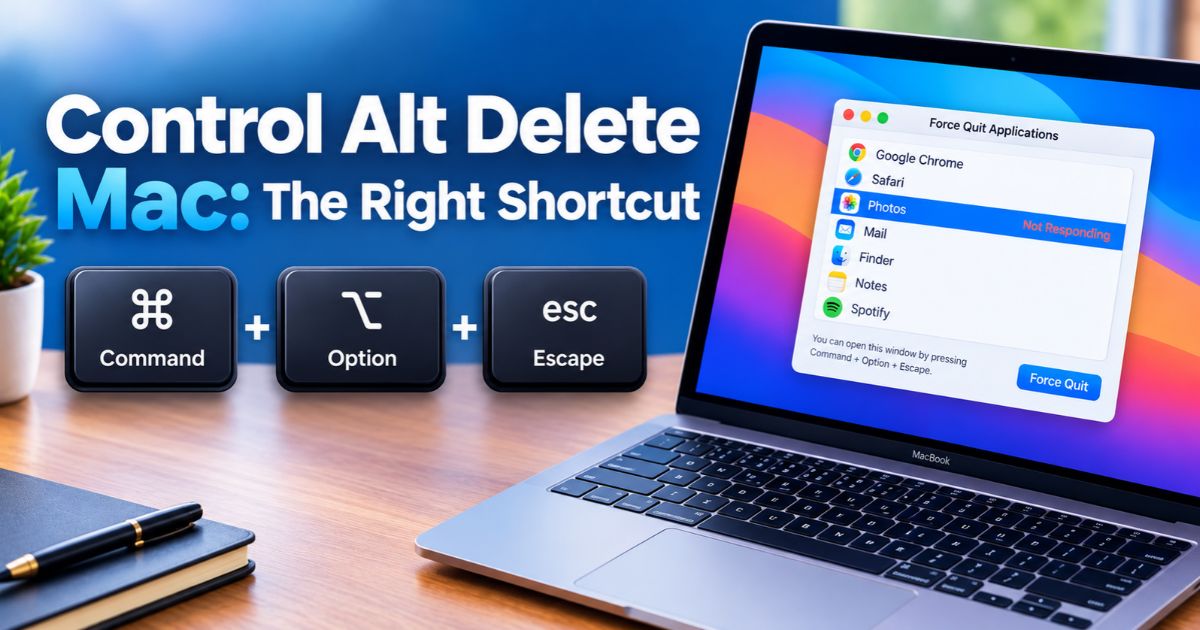
The Control Alt Delete Mac equivalent is Command + Option + Escape (⌘ + ⌥ + Esc). This keyboard shortcut opens the Force Quit Applications window, where you can close an app that has frozen or stopped responding. Unlike Windows, macOS does not use one shortcut to open a single screen for all system-management tasks.
Mac provides separate tools for closing unresponsive apps, monitoring running processes, locking the screen, and restarting the computer. Knowing which shortcut to use can help you regain control without restarting your entire Mac.
Key Takeaways
- Press Command + Option + Escape to open Force Quit Applications.
- Select an unresponsive app and click Force Quit to close it.
- Try Command + Q first when an app is still responding.
- Use Activity Monitor to inspect processes and manage apps that continue to cause problems.
- Force quitting may cause you to lose unsaved changes.
- Restart your Mac if an app or the system remains unresponsive.
What Is the Control Alt Delete Equivalent on Mac?
Windows users often press Ctrl + Alt + Delete to access system options, including Task Manager and security controls. Mac uses a different approach because these functions are handled by separate shortcuts and built-in tools.
For most people, the closest equivalent is Command + Option + Escape. It opens the Force Quit Applications window and lets you select an app that is not responding.
Here is what each key means on a Mac keyboard:
- Command (⌘): A modifier key used for many macOS shortcuts.
- Option (⌥): Sometimes labeled Alt, particularly on keyboards designed for different operating systems.
- Escape (Esc): The key you press, together with Command and Option, to open Force Quit Applications.
Press all three keys together. When the Force Quit window appears, select the app you want to close and choose Force Quit.
However, this shortcut does not reproduce every function of Windows Ctrl + Alt + Delete. For example, Activity Monitor handles process management, while separate controls let you lock or restart your Mac.
How to Use Control Alt Delete on Mac to Force Quit an App
A frozen app can prevent you from saving a document, switching windows, or continuing your work. The Force Quit shortcut is usually the quickest way to close it.
Step 1: Press Command + Option + Escape
Press and hold Command (⌘) + Option (⌥), then press Escape (Esc). The Force Quit Applications window should appear.
Step 2: Select the Unresponsive App
Look through the list of open apps. An app that has stopped responding may show Not Responding next to its name.
Choose the app that is frozen. Double-check its name before proceeding so you do not close the wrong application.
If Finder stops responding, select Finder in the list. The button changes to Relaunch, which closes and reopens Finder.
Step 3: Click Force Quit
Click Force Quit and confirm the action if macOS asks you to do so. The app should close, allowing you to return to your desktop or continue using other applications.
Step 4: Reopen the App
Launch the app again from the Dock, Launchpad, or Applications folder. Check whether it works normally.
Remember that force quitting stops the app without giving it the usual opportunity to save your work. Unsaved changes may be lost, so try a normal quit first whenever the app still responds.
Apple explains this process in its official guide, How to force an app to quit on Mac.
Other Ways to Force Quit an App on Mac
The keyboard shortcut is convenient, but it is not the only option. You can use the following methods when you prefer the mouse or trackpad.
Method 1: Use the Apple Menu
- Click the Apple menu in the top-left corner of your screen.
- Select Force Quit.
- Choose the unresponsive app.
- Click Force Quit and confirm if prompted.
This method is useful when your keyboard shortcut does not open the Force Quit window but the pointer and menu bar still work.
Method 2: Quit the App Normally
Before force quitting, try closing the app normally:
- Click the app to make it active.
- Press Command + Q.
- Wait briefly for the app to close.
You can also open the app’s menu in the menu bar and select Quit.
A normal quit gives the application a chance to save changes and finish its current tasks. Use Force Quit when the app will not close or remains unresponsive.
Method 3: Use Activity Monitor
Activity Monitor is the closest Mac equivalent to Windows Task Manager for viewing running processes and checking resource usage. It can help when an app continues to misbehave or you need more information about what is running.
To use it:
- Press Command + Space to open Spotlight Search.
- Type Activity Monitor.
- Press Return to open the app.
- Find the app or process causing the problem.
- Select it and click the stop button in the toolbar.
- Choose the available quit option and confirm when necessary.
Activity Monitor can show information about CPU, memory, energy, disk, and network activity. Be careful when stopping processes you do not recognize, because some are essential to macOS.
What to Do When Command + Option + Escape Does Not Work
Sometimes the shortcut does not appear to do anything. The cause may be an unresponsive keyboard, a system-wide freeze, or an issue limited to a particular app.
Try these steps in order.
1. Check Whether Your Mac Is Still Responding
Move the pointer, click another window, or try opening a menu. If other parts of macOS work, the issue may be limited to one application.
Try opening Force Quit from the Apple menu instead of using the keyboard shortcut.
2. Check Your Keyboard
Make sure the Command, Option, and Escape keys work. On an external keyboard, check the cable or Bluetooth connection. If you are using a Windows keyboard with your Mac, the modifier-key layout may differ. The Windows key commonly serves as Command, while Alt serves as Option.
3. Try Activity Monitor
When Force Quit does not solve the issue, open Activity Monitor and check whether the app or a related process is still running. Quit only the process you can identify confidently.
4. Restart Your Mac
If the app remains stuck or several parts of macOS stop responding, restart your computer from the Apple menu if possible.
When the Mac will not restart normally, Apple advises pressing and holding the power button for up to 10 seconds until the Mac turns off, then pressing the power button again to start it. On Mac laptops with Touch ID, the Touch ID button serves as the power button.
Use a forced shutdown only when normal options fail, because it can interrupt other running applications and cause unsaved work to be lost.
Useful Mac Shortcuts Similar to Control Alt Delete
Mac divides common system tasks among different keyboard shortcuts. These combinations can help you handle situations that Windows users may associate with Ctrl + Alt + Delete.
| Task | Mac shortcut or method |
| Open Force Quit Applications | Command + Option + Escape |
| Quit the current app normally | Command + Q |
| Open Spotlight Search | Command + Space |
| Lock the screen | Control + Command + Q |
| Restart the Mac | Apple menu → Restart |
| Open Activity Monitor | Spotlight Search → Activity Monitor |
These shortcuts serve different purposes, so choose the one that matches your problem. For example, locking your screen does not close a frozen app, and opening Activity Monitor is different from opening Force Quit Applications.
For more combinations, consult Apple’s official Mac keyboard shortcuts guide.
FAQs
What is the Control Alt Delete shortcut on Mac?
The closest equivalent is Command + Option + Escape. It opens Force Quit Applications, allowing you to close an app that is not responding.
How do I force quit a frozen Mac app?
Press Command + Option + Escape, select the frozen app, and click Force Quit. You can also open the Apple menu and choose Force Quit.
Does Control Alt Delete work on a Mac?
The Windows shortcut Ctrl + Alt + Delete does not perform the same function on macOS. Use the Mac-specific shortcuts and tools for force quitting apps, monitoring processes, or managing your session.
What is the Mac equivalent of Task Manager?
Activity Monitor is the closest equivalent to Windows Task Manager for viewing running processes and checking CPU, memory, and other resource usage. Force Quit Applications is the simpler option for closing an unresponsive app.
Will force quitting an app delete my files?
Force quitting does not normally delete files already saved to your drive. However, unsaved changes may be lost because the app is closed without its usual saving and shutdown process.
How do I close an app on Mac without using a keyboard shortcut?
Click the Apple menu, choose Force Quit, select the unresponsive app, and click Force Quit. If the app is working normally, open its menu in the menu bar and select Quit instead.
What should I do if my entire Mac is frozen?
Wait briefly to see whether the system recovers. If normal controls work, try restarting from the Apple menu. If the Mac remains completely unresponsive, use the power button to shut it down only as a last resort, then start it again.
Final Thoughts
The easiest way to handle the Control Alt Delete Mac equivalent is to remember Command + Option + Escape. This shortcut opens Force Quit Applications and helps you close a frozen app without restarting your entire computer.
For normal app closures, use Command + Q. For more detailed process information, open Activity Monitor. If neither option works and macOS remains unresponsive, restart your Mac or use a forced shutdown only when necessary.
Once you know these alternatives, you can handle most frozen-app situations without relying on the Windows keyboard combination.
Recent Article : MacBook Pro Faint Horizontal Lines: Causes & Fixes

Jennifer Aston is a passionate poetry curator and writer with a deep love for the written word. She believes poetry has the power to heal, inspire, and connect people across all walks of life. Through PoemSteric, she brings together timeless and modern verses for every emotion and every moment.