
Introduction
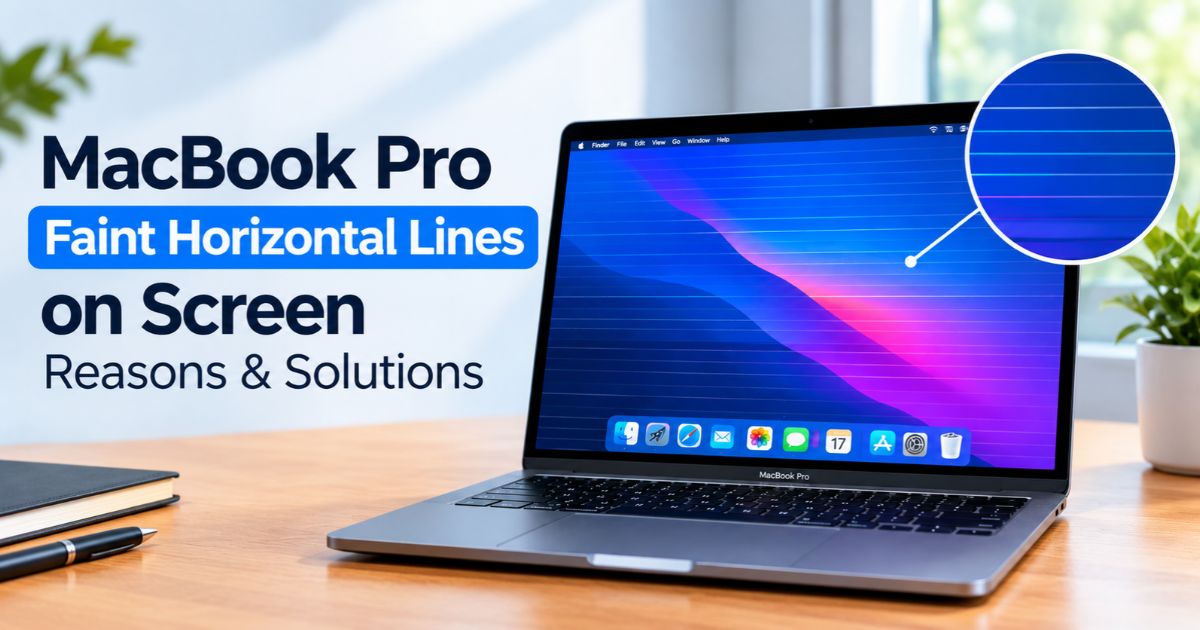
If you notice MacBook Pro faint horizontal lines on your screen, the cause could be a software glitch, a display setting, or a hardware fault. The lines may look like thin gray streaks, colored bands, or flickering stripes, and they are often easiest to see on a white background.
The look of the lines alone does not confirm the cause. Before you pay for a screen replacement, run a few safe checks to find out whether the problem comes from macOS or from the built-in display. If the lines stay, spread, or appear with other display problems, arrange a professional inspection.
Key Takeaways
- Faint horizontal lines can have software or hardware causes.
- A restart and any available macOS update are sensible first checks.
- Comparing a screenshot with the physical screen gives a useful clue, but it is not a diagnosis.
- Testing an external monitor helps show whether the problem is limited to the built-in display.
- Persistent lines, flickering, discoloration, or physical damage may need professional repair.
- Do not press the screen, open the display, or try unverified repair tricks.
1. What Do Faint Horizontal Lines on a MacBook Pro Look Like?
The pattern can help you decide which checks to run first.
- Thin gray lines: Subtle marks, more visible on white or light backgrounds.
- Colored lines: Red, green, blue, or other streaks that stay visible across apps.
- Flickering bands: Horizontal areas that appear, disappear, or change brightness.
- Lines that depend on content: Marks that show up only in certain apps, windows, or colors.
- Lines that change with the lid angle: This deserves attention, because it can point to a display connection or panel problem.
These symptoms are clues, not proof. Different faults can look alike, so do not assume every line means the screen must be replaced.
2. What Causes MacBook Pro Faint Horizontal Lines?
Software or macOS display problems
A temporary glitch, an operating system bug, or a problem in one app can cause odd visual behavior. If the lines started after an update or appear in only one app, check the software first. Timing alone does not prove that an update caused the problem.
Display panel problems
Apple explains that LCD screens use millions of tiny subpixels, and that a small number of panels can have pixel anomalies, such as dark or bright spots. Apple says these are often caused by foreign material trapped in the display or by a faulty transistor. Anomalies of this kind usually appear as spots rather than long lines, so lines point more strongly to another cause, such as the panel or its connection. If you are worried, Apple recommends having the display examined at an Apple Store, an Apple Authorized Service Provider, or an Independent Repair Provider, and says there may be a charge for the evaluation. Read Apple’s guide to LCD pixel anomalies for details.
Display connection or internal hardware damage
A damaged or worn display assembly, a loose internal connection, or another hardware fault can cause persistent lines, flickering, or image changes. You cannot reliably diagnose these by appearance alone. If the lines began after a drop, pressure on the lid, or liquid exposure, arrange an inspection instead of manipulating the screen.
Graphics or display-processing problems
The graphics hardware and software work together to create the image, and a fault in that process can cause visual artifacts. Faint lines alone are not enough to identify this. Testing different apps, taking a screenshot, and trying an external monitor help narrow down the source.
Heat, impact, or pressure
Excess heat, an impact, or pressure on the display may be relevant. None of these proves a cause, but tell the technician about them.
3. How to Fix Faint Horizontal Lines on a MacBook Pro
Try these checks in order. Stop if the problem gets worse or you notice physical damage.
Step 1: Restart Your MacBook Pro
- Save your open work.
- Open the Apple menu.
- Select Restart.
- Wait for macOS to load fully, then check the screen.
If the lines disappear, watch whether they return. If they stay, continue.
Step 2: Check for macOS Updates
- Open System Settings.
- Click General.
- Click Software Update.
- Install an available update, then restart if asked.
Back up important data first. If the problem began right after an update, note the macOS version and the date. Repeated reinstalling will not repair a physical display fault.
Step 3: Check Different Apps and Backgrounds
Open Finder, Safari, and System Settings, and view both light and dark backgrounds.
- Lines in only one app suggest an issue with that app.
- Lines in every app make a system-wide or hardware cause more likely.
- Lines that stay in the same place regardless of content call for the next two checks.
Step 4: Take a Screenshot
A screenshot helps separate a problem in the rendered image from one that exists only on the physical display.
- Show a screen where the lines are easy to see.
- Press Shift + Command + 3 to capture the whole screen.
- Open the screenshot and view it on another device or display if possible.
- Lines visible in the screenshot: The problem may be in the image itself or the graphics path.
- Lines missing from the screenshot: A physical display problem becomes more likely, though not certain.
Also take a clear photo or short video of the screen with your phone. It is useful evidence for a repair provider.
Step 5: Connect an External Monitor
Connect a compatible monitor with a suitable cable or adapter and compare the images.
- External screen looks normal: The built-in display or its connection is a stronger suspect.
- Both screens show similar artifacts: Look at software, graphics, or other shared components.
Neither result proves a specific part has failed, so a technician may need further tests.
Step 6: Run Apple Diagnostics
Apple Diagnostics can help point to a hardware component that might be at fault. It does not detect every display fault, and a clean result does not rule out hardware problems.
Shut down your Mac and place it on a hard, flat, stable surface with good ventilation.
Mac with Apple silicon:
- Press and hold the power button (or Touch ID button).
- Keep holding until you see startup options, then release.
- Press and hold Command (⌘) + D until the Mac restarts into diagnostics.
Intel-based Mac:
- Turn on the Mac and immediately press and hold D.
- If that does not work, press and hold Option (⌥) + D instead.
Follow the on-screen instructions and write down any reference codes. For the latest steps, see Apple’s guide to using Apple Diagnostics.
If diagnostics finds a problem, share the reference code with Apple Support or your repair provider. If it reports nothing but the lines remain, you may still need a professional evaluation.
4. When Should You Get Your MacBook Pro Repaired?
Arrange an inspection if the lines persist after these checks or get in the way of normal use. Seek service promptly if you notice:
- Lines that become thicker, darker, or more numerous
- Persistent flickering, heavy discoloration, or parts of the screen that stop working
- Lines that appeared after a drop, impact, liquid exposure, or pressure on the lid
- A display that changes noticeably when you open or close the lid
- A blank screen or other symptoms alongside the lines
Backup your files if you can do so safely. Contact Apple Support, an Apple Authorized Service Provider, or a reputable repair provider familiar with your model. You can check your coverage at checkcoverage.apple.com.
Ask the technician to diagnose the fault before you approve a screen replacement. The repair and cost depend on the findings, and warranty or AppleCare coverage depends on your device, plan, and the cause of the damage.
5. What Not to Do When Horizontal Lines Appear
- Do not press or squeeze the screen. Pressure can damage display parts.
- Do not twist the lid or flex it repeatedly to test the fault. If the lines react to movement, tell the technician.
- Do not open the display assembly without repair experience and the right tools.
- Do not install unknown display-fixing utilities. Software cannot repair damaged hardware and may cause other problems.
- Do not reset or reinstall macOS repeatedly without a reason.
- Do not ignore worsening symptoms.
If the Mac has had liquid exposure or serious physical damage, stop experimenting and get a professional assessment.
FAQs
Why does my MacBook Pro have faint horizontal lines?
Possible causes include a software or rendering issue, a display panel problem, a faulty internal connection, or another hardware fault. The pattern alone cannot confirm which. Compare a screenshot, test an external display, and seek service if the lines persist.
Can a macOS update fix horizontal lines?
It may help if a software bug is responsible. It is unlikely to fix a damaged panel or internal connection, so do not treat an update as a guaranteed fix.
Why do the lines appear only on a white background?
Subtle display flaws are easier to see on light, uniform backgrounds. Try other colors and apps. If the lines stay in the same physical area, arrange an assessment.
Can a screenshot tell me whether my MacBook screen is damaged?
It is a clue, not a test. If the lines are missing from the screenshot, the built-in display becomes a stronger suspect. If they appear in it, the problem may be in the image or graphics path.
Will Apple Diagnostics detect faint horizontal lines?
It may find certain hardware problems, but not every display fault. If the lines continue after diagnostics, get a professional inspection.
Do faint horizontal lines mean I need a new screen?
Not necessarily. The cause could be software, the panel, a connection, or another part. A technician should find the likely cause before recommending a replacement.
Is it safe to keep using a MacBook Pro with faint lines?
If the Mac works normally and the lines are stable, back up your data and run the checks above. Worsening symptoms, physical damage, unusual heat, or other display failures call for prompt professional help.
Final Thoughts
MacBook Pro faint horizontal lines are frustrating, but they do not automatically mean the screen needs replacing. Start with a restart and software checks, then compare a screenshot and test an external monitor if you can.
If the lines persist, spread, or appear after physical damage, arrange a professional inspection. Apple Diagnostics can give useful clues, but a normal result does not rule out every display fault. Identify the likely cause before you spend money on repairs.
Recent Article : MacBook Pro Backlit Keyboard: How to Turn It On

Jennifer Aston is a passionate poetry curator and writer with a deep love for the written word. She believes poetry has the power to heal, inspire, and connect people across all walks of life. Through PoemSteric, she brings together timeless and modern verses for every emotion and every moment.