
Introduction
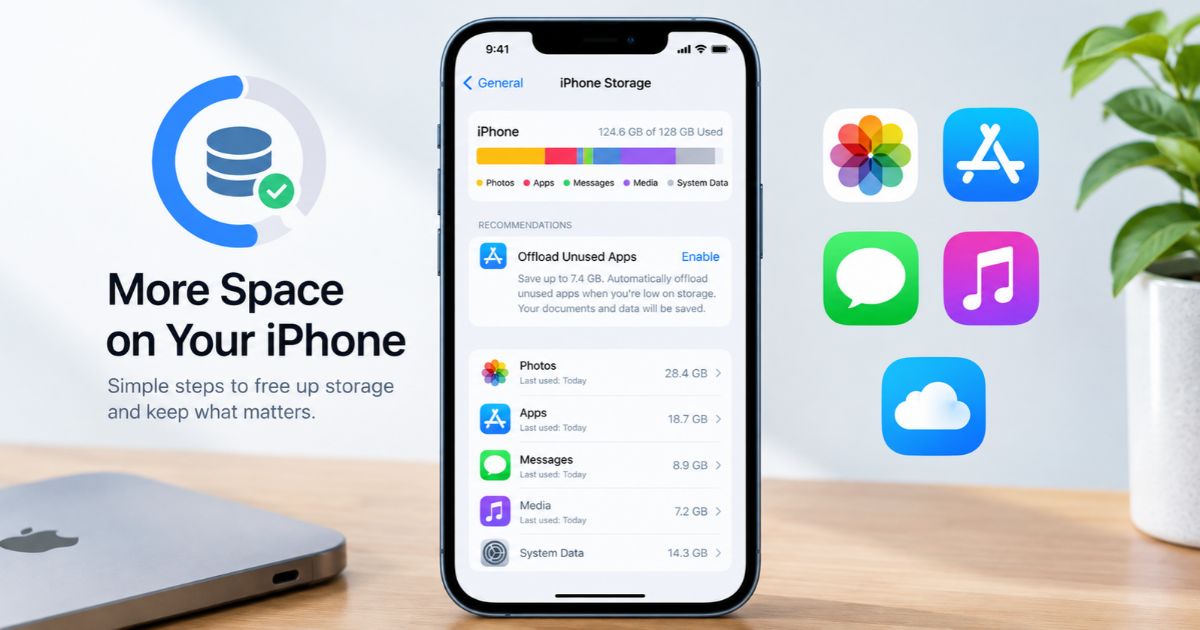
Wondering how to get more storage on iPhone when the “Storage Almost Full” warning keeps appearing? You can usually free up space by offloading unused apps, clearing out photos and videos, removing old downloads, and deleting large message attachments. The right fix depends on what is using the most room, so check your storage settings first.
You do not need to buy a new iPhone or pay for extra iCloud storage to get started. A few careful changes can help you recover space while keeping the photos, files, and apps you still need. The steps below match iOS 26 and iOS 27, so menu names may look slightly different on older versions.
Key Takeaways
- Check Settings > General > iPhone Storage to see what is using the most space, then tap Show All to view Apple’s recommendations.
- Offload apps you rarely use if you want to keep their documents and data.
- Review large videos, duplicate photos, downloads, and message attachments before deleting them.
- iCloud storage and iPhone storage are different. Buying more iCloud storage does not increase your iPhone’s physical capacity.
- If you use iCloud Photos, Optimize iPhone Storage is on by default and keeps space-saving copies on your phone. Deleting a photo, however, deletes it on all your synced devices.
- Back up important files and understand how deletion works before removing photos or documents.
1. Check What Is Taking Up iPhone Storage
Start by finding out which categories use the most space. Deleting random files can waste time if the main problem is a few large videos or apps.
Follow these steps:
- Open Settings.
- Tap General.
- Tap iPhone Storage.
- Wait for the storage breakdown and app list to load.
- Review the recommendations and check how much space each app uses.
Your iPhone may show categories such as Apps, Photos, Media, Mail, Messages, iCloud Drive, System, and Other. The exact breakdown depends on your device and the content stored on it.
If your iPhone offers recommendations, tap Show All. Read each description, then tap Enable to turn a recommendation on, or tap it to review the content you can delete.
Tap an app to see its storage details. Some apps use a lot of space for downloaded content, saved projects, or documents, even if the app itself is small. Cached and temporary data might not be counted in this usage.
Start with the largest categories and choose the changes that remove unnecessary data without affecting files you want to keep.
2. Offload or Delete Apps You Do Not Use
Unused apps can take up valuable storage. However, offloading and deleting an app are different actions.
Offload an app
Offloading removes the app itself but keeps its documents and data. This is useful if you may need the app again and want to keep its information.
To offload an app manually:
- Open Settings > General > iPhone Storage.
- Select an app you rarely use.
- Tap Offload App.
- Confirm your choice.
The app icon stays on your Home Screen with a cloud symbol. Tap it later to download the app again, as long as it is still available on the App Store.
Delete an app
Deleting an app removes the app and its related data. Depending on the app, you may be able to delete only some of its documents and data instead. Choose deletion when you are sure you no longer need the app or its locally stored information.
Turn on automatic offloading
You can let your iPhone offload unused apps for you when storage runs low. On iOS 26 and later, go to Settings > Apps > App Store > Offload Unused Apps. On iOS 18, the setting is under Settings > App Store. You can also tap Enable on the Offload Unused Apps recommendation in iPhone Storage.
Which option should you choose? Offload apps you might use again, and delete apps you no longer need. Before deleting an app used for work, messaging, authentication, or gaming, check whether its important data is backed up or stored in an account.
3. Delete Large or Unnecessary Photos and Videos
Photos and videos are common reasons an iPhone runs out of space. High-resolution pictures and long videos can use far more storage than ordinary documents.
Open the Photos app and review your library. Look for:
- Long videos you no longer need
- Accidental screenshots and screen recordings
- Blurry or unwanted pictures
- Duplicate images
- Old clips that you have already backed up elsewhere
Delete only the items you are comfortable losing. If you want to keep a photo or video, back it up or transfer it to another suitable location before removing it from your device.
Merge duplicate photos
Photos can find duplicates for you on iOS 16 and later:
- Open Photos, then tap Collections.
- Swipe up and tap Duplicates under Utilities.
- Tap Merge for one set, or tap Select to merge several sets at once.
Merging keeps the best-quality version. The other copies move to Recently Deleted, so empty that album to actually free the space.
Empty the Recently Deleted album carefully
Deleted photos and videos stay in Recently Deleted for 30 days before they are permanently removed. Until then, they can keep using storage.
To review this album:
- Open Photos, then tap Collections.
- Swipe up and tap Recently Deleted under Utilities.
- Tap View Album and unlock it with Face ID or Touch ID if prompted.
- Review the contents.
- Tap Select, choose the items, tap the More button, then tap Delete or Delete All.
- Confirm your choice. This cannot be undone.
Be especially careful if you use iCloud Photos. Deleting a photo from one device also deletes it from your other devices that use the same Apple Account. Confirm that you have a separate backup if you want to keep the original.
4. Use iCloud Photos to Optimize Device Storage
If your photo library uses a large part of your iPhone storage, iCloud Photos with Optimize iPhone Storage can help.
With this setup, full-resolution photos and videos are stored in iCloud, and space-saving copies are kept on your iPhone when needed. You can still access your whole library, but you need enough iCloud storage and an internet connection to download originals that are not stored on your phone.
To check or change it:
- Open Settings.
- Tap your name.
- Tap iCloud, then tap Photos.
- Turn on Sync this iPhone.
- On iOS 27 or later, tap iPhone Storage.
- Make sure Optimize iPhone Storage is turned on.
When you use iCloud Photos, Optimize Storage is on by default. Menu labels can vary by iOS version.
Important: This feature is not the same as manually backing up photos and then deleting them. When iCloud Photos is on, deleting a synced photo from your iPhone also deletes it from the synced library. Optimize Storage is the safer choice if you want to keep your library while reducing local storage use.
Check your available iCloud space before turning on syncing. Every Apple Account includes 5 GB of free iCloud storage, which a large photo library can fill quickly. If your cloud storage is full, uploads may not complete.
5. Remove Downloads, Offline Videos, and Large Files
Files downloaded for offline use can build up without you noticing. Examples include movies, music, podcasts, PDFs, and documents.
Review the Files app
- Open Files.
- Tap Browse.
- Open locations such as On My iPhone and Downloads, where available.
- Look for large files you no longer need.
- Delete unnecessary files after checking their contents.
Files in iCloud Drive may also have a local downloaded copy. If you want to keep a file in the cloud but remove its copy from your phone, look for Remove Download instead of Delete. The available actions depend on the file location and iOS version.
Check streaming and entertainment apps
Open video, music, podcast, and other media apps that support offline downloads. Remove episodes, movies, playlists, or other content you have finished using.
Delete a downloaded update
If iOS has already downloaded an update you have not installed, it may appear in Settings > General > iPhone Storage. Tap it and choose Delete Update to recover the space.
Downloaded content is often easier to replace than personal photos or work documents, so it is a good place to start when you need space quickly.
6. Clear Large Message Attachments
Messages can use a lot of storage when conversations contain videos, photos, voice messages, and other attachments.
To review this category:
- Go to Settings > General > iPhone Storage.
- Tap Messages.
- Tap Review Large Attachments if it appears. You may also see it as a recommendation on the main iPhone Storage screen.
- Delete only the items you no longer need.
You can also open individual conversations and review their media. Save important images or files before deleting them.
Avoid deleting a whole conversation just to remove one large attachment, unless you are comfortable losing the conversation and everything in it. If Messages in iCloud is turned on, changes may sync to your other devices.
Auto-delete old messages
To stop old messages and attachments from piling up, go to Settings > Apps > Messages > Keep Messages (on older iOS versions, Settings > Messages). Choose 30 Days or 1 Year instead of Forever. Older messages and their attachments are then removed automatically, so use this only if you do not need to keep them.
7. Understand iCloud Storage vs. iPhone Storage
One of the most common storage misunderstandings is thinking that more iCloud storage automatically gives an iPhone more physical space.
These are two separate types of storage:
| Storage type | What it holds |
| iPhone storage | Apps, local photos and videos, downloads, messages, and other device data |
| iCloud storage | Cloud-stored photos, files, backups, and supported app data |
Buying an iCloud+ plan increases your cloud storage, not the built-in capacity of your iPhone. However, features such as Optimize iPhone Storage can reduce how much local space your photo library needs.
You can check iCloud usage by opening Settings, tapping your name, and tapping iCloud. Tap Storage to see which services and backups use the most cloud space before deciding whether you need a larger plan.
If you do not want a subscription, you have two other options:
- Transfer to a computer: Move selected photos, videos, and documents to a computer or another reliable location. Confirm the transfer worked before deleting the originals.
- Use an external drive: iPhone 15 and later models have a USB-C port and can connect to compatible external storage, which you can browse in the Files app. Make sure the drive uses a format iPhone supports, such as exFAT or APFS. External storage is useful for moving large files, but it is not a full backup of your iPhone.
8. Review System Data Without Risky Cleanup Tricks
You may notice that Other (System Data on some versions) or System uses more storage than expected. According to Apple, the Other category includes non-removable items such as Siri voices, fonts, dictionaries, logs, caches, and the Spotlight index.
This category changes over time. iOS removes cached and temporary files on its own when your iPhone needs more space, so you cannot clear them manually.
Try these safe steps first:
- Restart your iPhone.
- Check Settings > General > iPhone Storage again after it finishes restarting.
- Install an available iOS update after preparing a backup, if you are not already up to date.
- Review individual apps for downloaded content or unusually large stored data.
- Recheck your available space after making changes.
Do not install unfamiliar cleaning apps or follow instructions that ask you to remove system files or use questionable configuration profiles. These methods may be ineffective or create privacy and security risks.
If this category stays unusually large and your phone has other problems, contact Apple Support before trying more disruptive troubleshooting.
9. Prevent Your iPhone Storage From Filling Up Again
After freeing space, a few habits can help you avoid the same problem later.
- Review storage monthly: Check the iPhone Storage screen and remove content you no longer need.
- Turn on automatic options: Use Offload Unused Apps and set Keep Messages to a shorter period if you do not need old chats.
- Manage video recording: Higher resolution and frame rates use more space. You can also choose the High Efficiency format in Settings > Camera > Formats to save space.
- Remove completed downloads: Delete offline movies, podcasts, and music you have finished with.
- Review large attachments: Check Messages from time to time and remove unnecessary media.
- Keep important files backed up: Maintain a reliable backup of photos, documents, and other irreplaceable data.
- Monitor cloud capacity: If you rely on iCloud Photos or iCloud Drive, make sure you have enough iCloud space.
You do not need to delete everything to keep your iPhone usable. Focus on files that are large, replaceable, or no longer useful.
FAQs
How can I free up iPhone storage quickly?
Start with Settings > General > iPhone Storage. Remove large downloads, delete unwanted videos, and offload apps you rarely use. Review everything before deleting it, especially personal photos and documents.
Does buying more iCloud storage increase iPhone storage?
No. An iCloud+ plan increases cloud storage, not the iPhone’s built-in capacity. However, features such as Optimize iPhone Storage can reduce the amount of local space your photo library uses.
Why is my iPhone storage full when I have deleted photos?
Deleted photos stay in Recently Deleted for 30 days. Other categories such as apps, downloads, message attachments, and Other or System data may also be using space. Check the storage breakdown to find the cause.
Is it better to offload or delete apps?
Offloading removes an app but keeps its documents and data. Deleting removes the app and its related data. Choose offloading if you may reinstall the app later, and check important data first because behavior can vary by app.
Can I increase my iPhone’s physical storage?
No, you cannot upgrade the built-in storage of an iPhone after purchase. You can free local space, use iCloud features such as Optimize iPhone Storage, or move files to a computer or an external drive.
Can I use an external drive with my iPhone?
Yes, on iPhone 15 and later. These models have a USB-C port and can connect to compatible drives, which appear in the Files app. Older iPhones with a Lightning port need an adapter and compatible storage.
Is it safe to clear System Data on an iPhone?
Avoid trying to remove system files manually. iOS manages cached and temporary files itself. Restarting your device, reviewing apps, and following official Apple guidance are safer starting points.
Final Thoughts
If you want to know how to get more storage on iPhone, begin by checking which categories use the most space. Then work through unused apps, large videos, duplicate photos, downloads, message attachments, and photo-storage settings. These steps can help you recover space without deleting files you still need.
Remember that iPhone storage and iCloud storage serve different purposes. Use Optimize iPhone Storage if you want your photo library to stay accessible, and keep a separate backup of important files. A quick monthly storage review can help stop the same warning from coming back.
Recent Article : How Do You View History on iPhone? Safari & More

Jennifer Aston is a passionate poetry curator and writer with a deep love for the written word. She believes poetry has the power to heal, inspire, and connect people across all walks of life. Through PoemSteric, she brings together timeless and modern verses for every emotion and every moment.