
Introduction
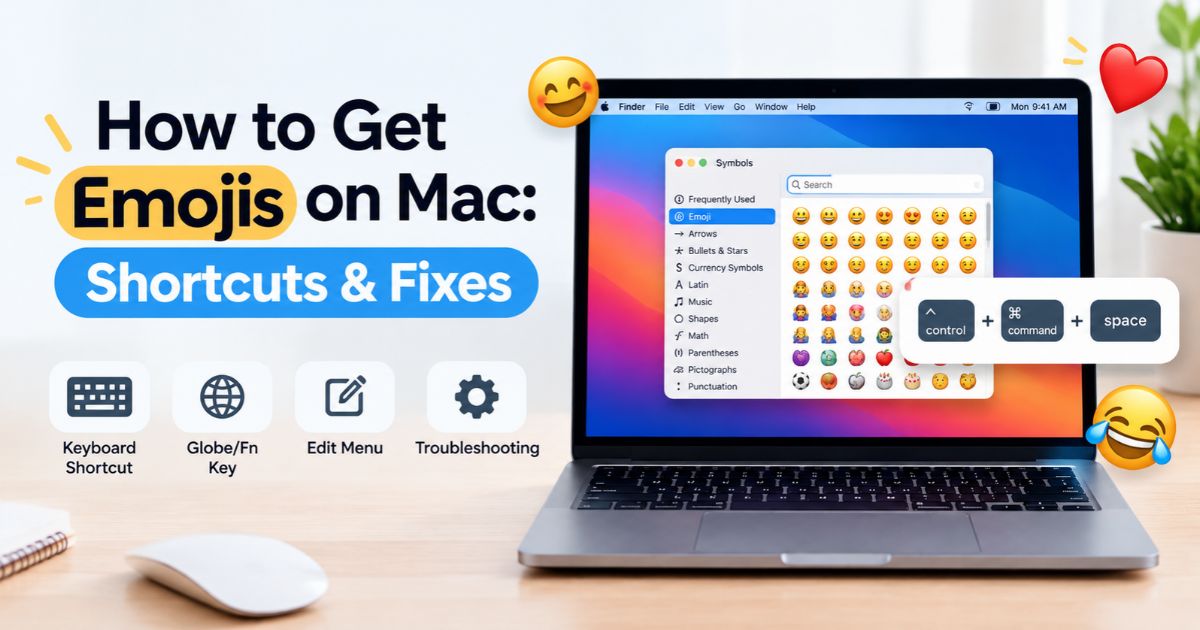
How To get emojis on Mac, press Control–Command–Space to open the emoji picker (called the Character Viewer), then search for or click the emoji you want. You can also choose Edit > Emoji & Symbols in most apps, or press Fn–E or Globe–E on supported keyboards.
Your Mac already includes a full emoji keyboard, so you don’t need to install anything. This guide covers every way to open it, how to search and save favorites, how to change skin tones, how to fix an emoji picker that won’t open, and how to type emojis faster.
Key Takeaways
- Fastest method: Press Control–Command–Space to open the emoji picker.
- Menu method: Choose Edit > Emoji & Symbols in a supported app.
- Fn or Globe key: Press Fn–E or Globe–E on supported setups.
- Search: Type a word like “heart,” “fire” or “thumbs up” to find an emoji fast.
- Personalize: Choose skin tones and save frequently used emojis as favorites.
- Not working? Click inside a text field first, check your keyboard settings, and test another app.
- Genmoji is a separate Apple Intelligence feature for creating custom emojis, not the standard emoji picker.
How to Get Emojis on Mac Using a Keyboard Shortcut
A keyboard shortcut is the quickest way to open the Mac emoji keyboard.
Open the Emoji Picker with Control–Command–Space
- Open an app such as Messages, Mail, Notes, Pages or Safari.
- Click inside the text field where you want the emoji.
- Press Control–Command–Space together.
- The emoji picker appears next to your cursor.
- Search for an emoji or browse the categories.
- Click the emoji to insert it.
For example, search “heart” to find ❤️ or “laughing” to find 😂. Press Esc or click elsewhere to close the picker.
This shortcut works in nearly every Mac app where you can type, which makes it the best one to remember.
Open Emojis Using the Fn or Globe Key
Many Mac keyboards have a Globe key (🌐) in the bottom-left corner or an Fn key. On supported setups, press Fn–E or Globe–E to open the emoji picker.
That key can also be set to do something else, such as switch input sources or start dictation. To check:
- Open the Apple menu and choose System Settings.
- Click Keyboard.
- Find “Press 🌐 key to” (or “Press fn key to”).
- Choose Show Emoji & Symbols.
With this set, a single tap of the Globe key opens the picker. Apple explains these options in its Mac emoji and symbols guide.
How to Open the Emoji Keyboard Without a Shortcut
If you prefer menus, there are two more ways to reach emojis.
Use Edit > Emoji & Symbols
- Open the app where you want to type.
- Click inside the text field or document.
- Click Edit in the menu bar.
- Choose Emoji & Symbols.
- Click the emoji you want.
The emoji is inserted at your cursor. Some apps don’t include this menu item, so use Control–Command–Space instead.
Add the Input Menu to Your Menu Bar
- Go to Apple menu > System Settings > Keyboard.
- Under Text Input, click Edit.
- Turn on Show Input menu in menu bar, if available.
- Click the Input menu icon in the menu bar and choose Show Emoji & Symbols.
On some versions of macOS, this setting is under Keyboard > Input Sources. This route also gives you access to the Keyboard Viewer, which shows an on-screen keyboard.
Use the On-Screen Keyboard (Accessibility Keyboard)
If your physical keyboard isn’t working, you can turn on the on-screen keyboard in System Settings > Accessibility > Keyboard > Accessibility Keyboard. It includes emoji and symbol options and can be controlled with your mouse or trackpad.
How to Find and Insert an Emoji on Mac
Once the picker is open, you can search or browse.
Search for an Emoji by Name
Type in the search box at the top of the picker. Try words like:
- Heart: hearts in many colors
- Laughing: laughing and smiling faces
- Thumbs up: thumbs-up with skin-tone options
- Cat: cat faces and related animals
- Fire: the fire emoji and flame symbols
- Party: confetti, balloons and celebration emojis
If the first word doesn’t work, try a related word. Search results depend on the emojis your macOS version includes.
Browse by Category
The picker groups emojis into categories such as Smileys & People, Animals & Nature, Food & Drink, Activities, Travel & Places, Objects, Symbols and Flags. Click a category icon at the bottom to jump to it. A Frequently Used section keeps your recent emojis handy.
Insert an Emoji into a Message or Document
Click the emoji once. It appears at the cursor. In the larger Character Viewer window, you may need to double-click. If nothing appears, make sure the text field is active and the app supports emojis.
Change Skin Tone
For emojis that support skin tones, click and hold the emoji in the picker, then choose a tone from the pop-up. On some versions, a skin-tone selector appears at the top of the picker that applies to all supported emojis.
Save Favorites
In the larger Character Viewer:
- Open the picker and click the expand icon in the top-right corner (the small window icon), if shown.
- Select the emoji or symbol.
- Click Add to Favorites.
Favorites appear in a dedicated section so you can reuse them quickly. Layouts differ slightly between macOS versions.
Use the Character Viewer for Symbols
The Character Viewer isn’t just for emojis. It also includes arrows, math symbols, currency signs, punctuation, accented letters and characters from other writing systems. Choose a category from the sidebar to explore.
How to Fix the Emoji Keyboard Not Working on Mac
If the emoji picker doesn’t open or doesn’t insert anything, work through these checks.
Click Inside a Text Field First
The picker only works when your cursor is in an editable area. Click a text box, then try again.
Try Another Opening Method
If Control–Command–Space fails, try Fn–E, Globe–E, or Edit > Emoji & Symbols. Testing in a simple app like TextEdit or Notes helps you tell whether the issue is limited to one app.
Check for Shortcut Conflicts
Open System Settings > Keyboard > Keyboard Shortcuts and look through Input Sources and Spotlight. Another app or a changed shortcut may use the same keys. Third-party tools such as window managers or text expanders can also grab the shortcut.
Check Your Globe or Fn Key Setting
In System Settings > Keyboard, confirm the Globe or Fn key is set to show Emoji & Symbols if that’s the behavior you want.
Restart the App or Your Mac
Quit the app and reopen it. If the problem is system-wide, restart your Mac. A restart fixes many small input glitches.
Update macOS
Bugs and missing emojis are often fixed in software updates. Open System Settings > General > Software Update and install any available update your Mac supports.
Check Your Keyboard Connection
For external keyboards, make sure the keyboard is connected and that all keys register. Windows keyboards may use different keys for Command and Option, so check the key mapping if shortcuts feel wrong.
How to Type Emojis Faster on Mac
Use Emoji Suggestions While Typing
Type a word such as “heart” and press Fn–E or Globe–E. If suggestions are available, a list appears where you can pick one. If not, the full picker opens. Results vary by app and version.
Use Text Replacements
Text replacement lets you type a short code that turns into an emoji.
- Open System Settings > Keyboard.
- Click Text Replacements.
- Click the + button.
- Enter a short phrase, such as
:fire, and paste the emoji in the With box. - Click Add.
Choose a phrase you won’t type by accident. These replacements can sync across your Apple devices through iCloud if enabled.
Copy and Paste from the Web
Sites like Emojipedia let you copy any emoji and paste it with Command–V. This is handy for newer emojis or when you want to preview how a character looks.
Use Option-Key Symbols
For symbols other than emojis, many Mac keyboards let you hold Option to type characters such as © (Option–G), ™ (Option–2) and ° (Shift–Option–8). These are quick alternatives when you don’t need a color emoji.
Can You Use Newer Emojis on Older Macs?
Emoji support depends on your macOS version, your fonts and the app displaying the character. On an older Mac, a newer emoji may show up as an empty box or question mark. Updating macOS, when your Mac supports it, usually adds the newest emoji.
Even then, the person receiving your message must have a device that supports the emoji too, or they may see a blank placeholder.
What Is Genmoji?
Genmoji is Apple’s feature for creating custom emoji from a text description using Apple Intelligence. It is separate from the standard picker. It requires a compatible Mac, a supported macOS version, and Apple Intelligence turned on, and availability can depend on your language and region. See Apple’s Genmoji guide for Mac for details. You do not need Genmoji to use regular emojis.
Using Emojis in Specific Mac Apps
- Messages: Click the emoji button next to the text box, or use Control–Command–Space. Messages also offers stickers and Memoji.
- Mail and Notes: Use the Edit menu or the keyboard shortcut.
- Pages, Numbers and Keynote: Insert emojis directly into text or cells.
- Safari and web forms: The shortcut works in most text boxes, though some sites may block certain characters.
- Terminal: Emojis may display but can behave unpredictably in commands and file names.
- File names: You can add emojis to Finder file names, but avoid them in files you share with others, since some systems handle them poorly.
FAQs
What Is the Shortcut for Emojis on Mac?
Press Control–Command–Space. On supported setups, Fn–E or Globe–E also works.
Why Is My Mac Emoji Keyboard Not Opening?
Your cursor may not be in a text field, another shortcut may conflict, or the app may handle the command differently. Try Edit > Emoji & Symbols, test another app, and check your keyboard settings.
How Do I Use the Globe Key to Open Emojis?
Press Globe–E, or set the Globe key to Show Emoji & Symbols in System Settings > Keyboard.
Can I Use Emojis in Every Mac App?
Not always. Many apps support emojis, but display and insertion can vary. Some apps lack the Emoji & Symbols menu, and older software may not show newer characters.
How Do I Change Emoji Skin Tone on Mac?
Click and hold an emoji that supports skin tones and pick the version you want.
How Do I Add Emojis to My Favorites?
Expand the Character Viewer, select an emoji and click Add to Favorites.
Is There an Emoji Keyboard on MacBook Pro Touch Bar?
On Macs with a Touch Bar, you can use the emoji option in the Touch Bar’s text suggestions when typing. Newer Macs don’t have a Touch Bar, so use the shortcut instead.
Do Emojis Look the Same on Every Device?
No. Apple, Google, Samsung and Microsoft each design their own emoji artwork, so the same emoji can look different on another device.
Final Thoughts
The easiest way to get emojis on Mac is to press Control–Command–Space and choose a character from the picker. If that doesn’t work, use Edit > Emoji & Symbols or check your Fn and Globe key settings.
Once you’re comfortable, use search, favorites and text replacements to type faster. Everything you need is built into macOS, so there’s no need for a third-party emoji keyboard.
Recent Article : How to Stop Screen Recording on Mac: Quick Fixes

Jennifer Aston is a passionate poetry curator and writer with a deep love for the written word. She believes poetry has the power to heal, inspire, and connect people across all walks of life. Through PoemSteric, she brings together timeless and modern verses for every emotion and every moment.