
Introduction
Steps written for the current iOS 26 interface. Button positions can shift slightly between iOS versions and Safari layouts.
How do you view history on iPhone? The honest answer is that it depends on which history you mean: the websites you visited, the calls you made or missed, your app and screen activity, your purchases, or the places you have been. Most people want their Safari browsing history, so that comes first, followed by Chrome and call history. If you meant something else, use the headings below to jump straight to the right section.
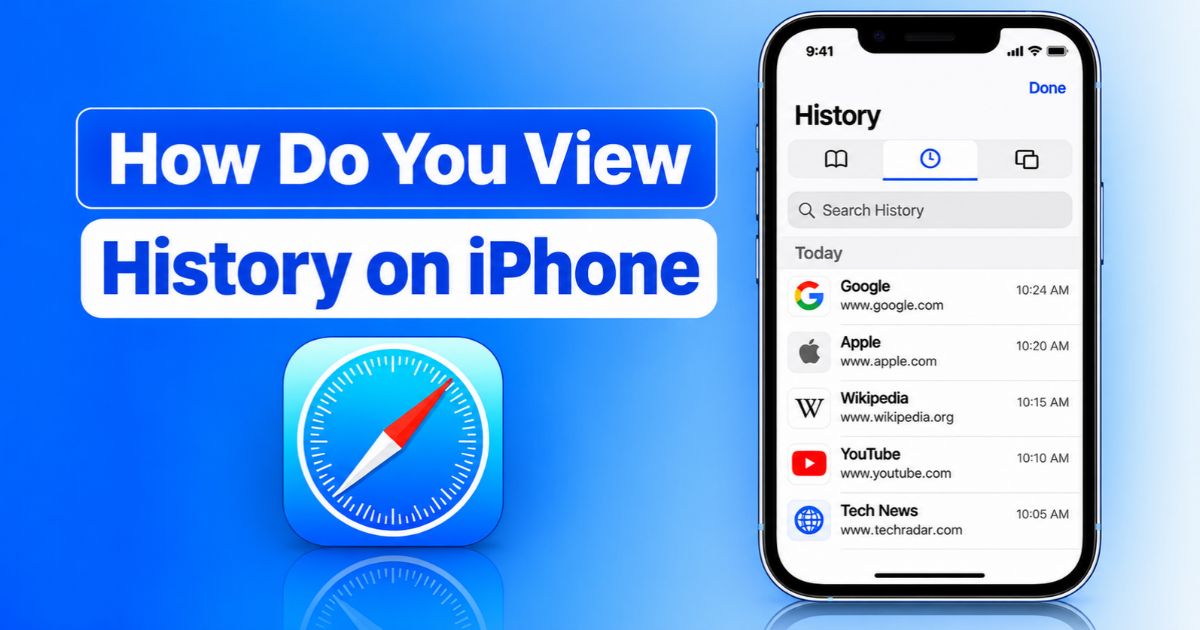
Quick answer: Open Safari, tap the Bookmarks (book) icon, then tap the clock tab. That list is your Safari history.
Key Takeaways
- Safari history lives inside the Bookmarks panel, on the clock tab. In iOS 26, depending on your tab bar layout, you may need to tap the three-dot menu first to reach Bookmarks.
- Chrome keeps its own history. Open Chrome, tap the three-dot menu, then tap History. Safari history will not show Chrome pages, and the reverse is also true.
- Call history is in the Phone app, under the Recents tab. It is completely separate from browser history.
- Private Browsing pages are never saved to Safari history, and history you have cleared cannot be brought back with a built-in “undo.” The only realistic route is a backup, covered below.
How to View Safari History on iPhone
How do you view history on iPhone when you use Safari? It takes only a few taps, and the steps below match the current iOS 26 interface.
Open Safari and Find the History Control
- Open the Safari app.
- Tap the Bookmarks icon (it looks like an open book). If you do not see it, tap the three-dot menu in the toolbar and choose Bookmarks. Apple’s iOS 26 Safari lets you pick different address bar layouts (Compact, Bottom, or Top), and the buttons move with them.
- Tap the clock icon at the top of the panel. This is the History tab.
- Scroll through the list, which is grouped by day with the most recent visits first. Tap any entry to reopen that page.
A few useful details:
- History is not saved per tab. Safari builds one shared list from all your normal browsing, so a page you read last night is in the same list as everything else, even if you have since closed that tab.
- Delete a single entry by swiping left on it and tapping Delete.
- Clear a time range by tapping Clear at the bottom of the History tab and choosing how far back to go (the last hour, today, or all history).
- Shortcut for the current tab: touch and hold the Back arrow to see the pages you moved through in that tab. This is quick when you just clicked away from something, but it only covers the current tab, not your full history.
Search for a Website You Visited
If you remember part of a site name but not when you visited it, you do not have to scroll. In the History tab, use the Search field at the top of the list (pull the list down slightly if the field is hidden). You can type a domain such as apple.com, part of a page title, or a keyword, and the list filters as you type.
Search only looks at pages in your saved history. It will not find Private Browsing pages or sites that were visited in another browser app.
Two other ways to find a page without opening the full list:
- Use the address bar. Start typing in Safari’s address bar and Safari suggests pages from your history and bookmarks.
- Use Spotlight. Swipe down on the Home Screen and search. Recent Safari results can appear there as well.
View Recently Closed Tabs
Closed a tab by accident? You do not need the full history list.
- In Safari, tap the Tabs button (the two overlapping squares).
- Touch and hold the plus (+) button.
- A Recently Closed Tabs list appears. Tap a page to reopen it.
This list is short and temporary. It is a convenience for tabs you just closed, not a complete record. For anything older, use the History tab.
View Tabs From Your Other Apple Devices
If Safari is turned on in iCloud, open a new tab and scroll to the bottom of the Start Page. You will see tabs that are open on your iPad or Mac under the same Apple Account. To check or change this, go to Settings > your name > iCloud > Apps (or Show All Apps) > Safari and make sure it is on.
How to View Chrome History on iPhone
How do you view history on iPhone if you browse with Chrome instead of Safari? Chrome does not use Safari’s history list. It stores its own, and you view it inside Chrome.
- Open Chrome.
- Tap the three-dot menu (bottom right on most layouts).
- Tap History.
- Scroll or use the search option to find a page, then tap it to reopen it. Tap Edit to remove individual entries, or Clear Browsing Data to remove a range.
Chrome history vs. your Google Account. These are not the same thing. Chrome’s History page shows pages opened in Chrome. Your Google Account’s My Activity page records searches and activity tied to your Google Account, such as Google searches and YouTube watching, and it can include activity from many devices and apps. Deleting one does not automatically delete the other.
Sync. If you are signed into Chrome and have history sync turned on, your history can appear across devices where you use the same Google Account. If sync is off or you are not signed in, Chrome shows only what was browsed on that iPhone. Incognito tabs are not saved to Chrome history either.
Other browsers, such as Firefox, Edge, and Brave, follow the same idea: open the app’s menu and look for History.
How to View Recent Call History on iPhone
Call history has nothing to do with Safari or Chrome. It lives in the Phone app.
- Open the Phone app.
- Tap Recents at the bottom.
- Tap Missed at the top to filter for calls you did not answer, or stay on All to see everything.
- Tap the info (i) button beside a call for details such as the date, time, and duration, plus options to message or call back.
Missed calls are shown in red. Incoming and outgoing calls show differently, and FaceTime calls can appear in the same list. To remove a call, swipe left and tap Delete, or tap Edit and then Clear to remove them in bulk.
Recents is a short running list, not a permanent log. For a complete account of calls and their times, your mobile carrier’s billing portal or monthly statement is usually more complete than your phone.
Why Is My iPhone Browsing History Missing?
If you open Safari’s History and it is empty or missing a page you remember, one of these is usually the reason.
Check Whether You Used Private Browsing
Private Browsing does not add pages to ordinary Safari history. Pages opened in a private tab are not saved, are not shared across your devices, and will not appear in History. To check, open the Tabs view and see whether the page was in a Private tab group. If it was, it is not recoverable from history.
Check Whether the History Was Cleared
History can disappear because someone cleared it, including you. The usual routes are Settings > Apps > Safari > Clear History and Website Data or Clear inside Safari’s History tab. Clearing also removes cookies and related website data, which is why you may find yourself signed out of sites afterward.
A cleared history is gone from the list. That is different from history that is merely hard to find. If you remember visiting a page, try the Search field before assuming it is gone, and check Safari Profiles: since iOS 17, Safari lets you set up separate profiles (such as Personal and Work), and each profile has its own history. You may be looking at the wrong one.
Check iCloud and Safari Synchronization
When Safari is on in iCloud, history is kept in sync across your iPhone, iPad, and Mac. That is helpful for finding a page you opened on another device. It also means that clearing history on one device can remove it from the others.
Retention is not the same on every device. Apple’s Safari documentation for Mac has said the Mac can keep history for up to a year, while some iOS devices keep it for about a month. Apple does not publish a setting that lets iPhone owners choose a longer period, so very old pages may no longer appear on your iPhone even if you have not cleared anything. Treat any article claiming a fixed one-year iPhone retention with caution, and check Apple’s current Safari User Guide for the latest wording.
Check Restrictions and Other Relevant Settings
- Screen Time restrictions. On a device managed with Screen Time and Content & Privacy Restrictions, web access and Safari may be limited, which can change what is available. If your iPhone is managed by a parent, school, or employer, history settings may be controlled by them.
- A different browser. If links open in Chrome or another browser, those visits will not be in Safari. Check Settings > Apps > Default Apps > Default Browser App.
- Low Power Mode does not turn off history. You may see claims online that it does, but Low Power Mode reduces background activity and does not stop Safari from recording the pages you visit.
- Update iOS. If History will not load or behaves oddly, update under Settings > General > Software Update and restart your iPhone.
Can You Recover Deleted Safari History on iPhone?
Usually not in the sense of tapping “undo.” Safari has no recycle bin for history. What you can try depends on how the history was lost.
- Check your other devices first. If you cleared history on your iPhone but have an iPad or Mac that has not yet synced, look there before it does. Turning that device’s internet connection off immediately can buy you time, though a sync that has already happened cannot be undone.
- Restore from a backup. If you have an iCloud or computer backup from before the history was deleted, restoring can bring back the older state of the phone, which includes Safari history. The trade-off is large: a restore replaces the current contents of your iPhone with the backup, so anything newer is lost. Make a fresh backup first and make sure you understand the backup’s date.
- Look for other traces. Check Bookmarks, your Reading List, Chrome or Google My Activity if you were signed in, and your email or messages if you shared the link.
- Be careful with recovery apps. Software that promises to retrieve permanently deleted history cannot guarantee results and often asks for payment or access to your data. There is no way to promise it will work on a modern, encrypted iPhone.
Going forward, bookmark pages you want to keep, and use a Reading List for articles you plan to return to.
Other Types of History You May Mean
How do you view history on iPhone when you mean calls, purchases, or app usage rather than websites? Each type lives in a different place, so use the short guides below.
Screen Time Activity
Go to Settings > Screen Time and tap See All Activity. Screen Time shows how much time you spend in apps, how often you pick up your phone, and notifications. It is a usage report, not a full record of every website you visited.
Apple Purchase History
Go to Settings > your name > Media & Purchases > View Account > Purchase History. For a more detailed view, including refund requests, use Apple’s Report a Problem page. Subscriptions are managed under Settings > your name > Subscriptions.
Location History
There is no single location history on iPhone. Different services keep their own. Apple’s Significant Locations setting is under Settings > Privacy & Security > Location Services > System Services, and Maps keeps recent searches. Third-party apps, such as Google Maps, manage their own location data and settings.
Privacy and Family Screen Time
Browsing history, Screen Time reports, and parental controls are different tools. Browsing history is a list of pages; Screen Time is a summary of usage; and parental controls restrict what a child can do.
Parents who want oversight of a child’s iPhone can use Apple’s Family Sharing and Screen Time features. They allow you to set downtime, app limits, and content restrictions, and to view activity reports for a child’s account. Talk with your child about how those controls work.
This guide does not cover secretly monitoring another adult’s browsing or getting around their privacy protections. Reading another person’s history without their permission can be illegal, and it can damage trust.
FAQs
How Do I See My Safari History on iPhone?
Open Safari, tap the Bookmarks (book) icon, and tap the clock tab. In iOS 26, you may need to open the three-dot menu first, depending on your tab bar layout.
Can I View History in Private Browsing?
No. Private Browsing does not save the pages you visit, so they never appear in Safari History and are not synced to your other devices.
How Long Does Safari Keep History on iPhone?
It depends on the device and settings. Apple’s documentation has said Mac keeps history for up to a year while some iOS devices keep it for about a month, and there is no iPhone setting to extend it. Check Apple’s current Safari User Guide for the exact figure.
Can I Recover Deleted iPhone Browsing History?
Not directly. A backup from before the deletion may restore it, but restoring replaces your current data, and nothing guarantees recovery of permanently deleted records.
Is Safari History the Same as Google Search History?
No. Safari history is stored by Safari on your device and can sync through iCloud. Google search history is activity tied to your Google Account, stored separately and managed through My Activity.
Final Thoughts
So, how do you view history on iPhone? For most people, the answer is simple: Safari > Bookmarks > clock tab. Use the Search field to find a specific page, and use the long-press on the plus button for tabs you just closed.
If you meant something else, go to the Chrome section for Chrome history, the Phone app section for recent calls, or the Other Types of History section for Screen Time, purchases, or location. And keep in mind that history from Private Browsing, or history that has been cleared, may not be recoverable, so bookmark what matters.
Recent Article : How to Get Emojis on Mac: Shortcuts & Fixes

Jennifer Aston is a passionate poetry curator and writer with a deep love for the written word. She believes poetry has the power to heal, inspire, and connect people across all walks of life. Through PoemSteric, she brings together timeless and modern verses for every emotion and every moment.