
Introduction
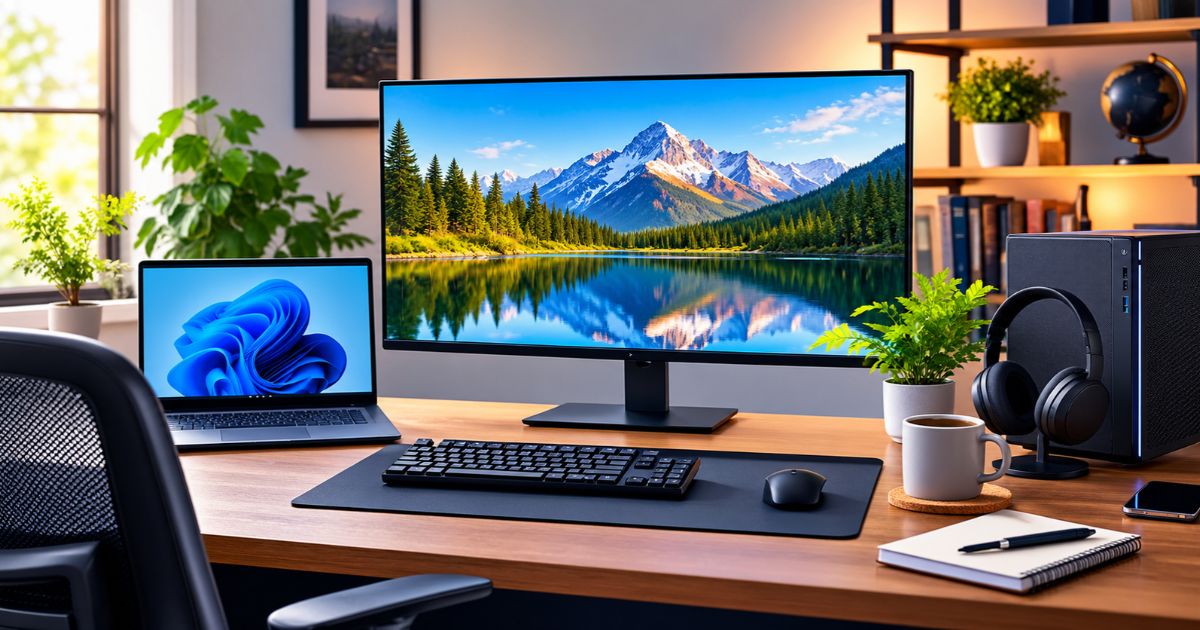
A personal workstation is a computer setup built around the tasks you do every day. It combines hardware (computer, display, storage), software (operating system, security, apps), and connectivity (network, ports, backups). Some people search for it as a “personal station.” The right setup depends on your software, not on how powerful the parts look on paper.
This guide explains the technology behind a personal workstation, how to choose components, and how to set it up without overspending.
Key Takeaways
- A personal workstation is a dedicated computer setup, and sometimes a computer built for demanding workloads.
- The main technology categories are the computer, display, input devices, storage and backups, and the network.
- Choose components from your software’s requirements, not from spec sheets alone.
- Security and backups are part of the setup, not extras.
- Spend on the parts that limit your work, and delay the rest.
What Is a Personal Workstation?
Personal Workstation vs. Regular Desktop Computer
“Workstation” can mean a work area, a high-performance computer, or both.
A regular desktop is a general-purpose computer. A workstation-class computer is built for sustained, demanding work such as 3D modeling, engineering, or data analysis. Such machines are usually designed for reliability under heavy loads, and some offer features like error-correcting (ECC) memory or professional graphics options.
Most beginners do not need workstation-class hardware. For them, a personal workstation simply means a well-chosen computer, a good display, and a reliable setup.
Who Needs a Personal Workstation?
- Remote workers who rely on video calls, cloud tools, and a stable connection
- Students who write, research, and attend online classes
- Programmers who run code editors, browsers, and sometimes virtual machines
- Creative professionals who edit photos, video, or audio
- Technical users who run simulation, design, or data software
Avoid assuming you need high-end hardware. Light tasks run well on modest machines.
What Equipment Do You Need for a Personal Workstation?
Computer, Processor, and Memory
The processor (CPU) handles general computing. More cores help with multitasking and heavy apps like video export or code builds. For everyday work, a current mainstream processor is usually enough.
Memory (RAM) holds what you are working on right now. If you keep many browser tabs, apps, or large files open, more RAM helps. Running out of RAM makes any computer feel slow.
A dedicated graphics card (GPU) matters mainly for 3D work, video editing, some design tools, and AI or machine learning tasks. For email, documents, and web browsing, built-in graphics are normally fine.
For a baseline, Microsoft lists Windows 11 minimums of 4 GB RAM, a 64 GB or larger storage device, and UEFI with Secure Boot support. See Microsoft’s Windows 11 specifications page. Microsoft also notes that some apps need more than the minimums. Always check the requirements of the software you actually use.
Monitor and Display Setup
Look at these display specs:
- Size and resolution: More pixels give sharper text and more room for windows.
- Panel quality: Better panels give more consistent color, which matters for design and photo work.
- Refresh rate: Higher rates give smoother motion, but they matter little for office work.
- Connections: Check that your computer and monitor share a port type, such as HDMI, DisplayPort, or USB-C.
One good monitor is enough for many users. A second screen helps with programming, research, and editing, but it is optional.
Keyboard, Mouse, and Other Accessories
Choose input devices you can use comfortably for hours. Wired devices avoid battery and latency issues, while wireless ones reduce cable clutter. Other useful accessories include a webcam and headset for calls, and a docking station if you use a laptop.
Check connection types before buying, such as USB-A, USB-C, Bluetooth, or a wireless receiver.
Storage, Backups, and Connectivity
Storage: A solid-state drive (SSD) is much faster than a traditional hard drive for startup, app loading, and file access. Choose a capacity that fits your files, and leave free space for updates.
Backups: A widely used rule is the 3-2-1 approach: three copies of your data, on two different types of storage, with one copy off-site, such as in the cloud. An external drive plus a cloud service covers most users.
Connectivity: Wired Ethernet is usually more stable than Wi-Fi for video calls and large transfers. If you use Wi-Fi, place the router where the signal is strong. Check your computer’s ports and buy adapters or a hub if needed. A surge protector helps protect equipment from power spikes.
Desk, Chair, and Lighting
Technology works best when you can sit comfortably. Use an adjustable chair, place the screen near eye level, keep the keyboard and mouse within easy reach, and reduce glare with good lighting. You do not need premium furniture to start.
How to Set Up a Personal Workstation Step by Step
Identify Your Main Requirements
List the apps you use, how demanding they are, and how many hours you work. Check each app’s published system requirements. This list drives every decision that follows.
Choose Suitable Hardware
Match components to your list. Put money into the part that limits your work: more RAM if your system slows with many apps, a faster SSD if loading is slow, or a GPU only if your software uses it.
Arrange Your Desk and Monitor
Place the monitor at a comfortable distance and height. Position your keyboard and mouse close to you. Keep cables organized so you can reach ports and power easily.
Install Software and Configure Security
- Install operating system updates.
- Turn on automatic updates.
- Use strong, unique passwords, ideally with a password manager.
- Enable multi-factor authentication on important accounts.
- Turn on built-in disk encryption, such as BitLocker on Windows or FileVault on Mac, where available.
- Install only the apps you need.
Set Up Backups and Test Performance
Run your first backup right away, and schedule regular ones. Then test the setup with your real tasks: open your main apps, join a video call, and work for a while. If something lags, find the specific limit before buying anything.
What Are the Benefits of a Personal Workstation?
A well-planned setup can offer:
- Reliable performance for the tasks you actually do
- Better organization, with your tools and files in one place
- Easier maintenance, since updates, security, and backups follow a routine
- Room to upgrade individual parts later
These are potential benefits, not guaranteed results. A dedicated setup is also not essential for everyone. A single laptop is enough for many users.
How Much Does a Personal Workstation Cost?
The main cost factors are:
- Computer: Usually the biggest cost. It rises with CPU, RAM, GPU, and storage.
- Monitor: Depends on size, resolution, and panel quality.
- Accessories: Input devices, webcam, headset, and hubs.
- Networking and power: Router upgrades, cables, and a surge protector.
- Furniture and optional upgrades: Chair, desk, second screen.
US prices are not listed here because they change often and could not be verified from a reliable source. Compare current prices across several retailers.
To save money, reuse what you already own, and put money into the parts that limit your work. Delay extras like a second monitor, a GPU, or premium peripherals until you need them.
Common Personal Workstation Setup Mistakes
- Buying more computing power than necessary. Match specs to your software.
- Ignoring comfort and desk layout. Poor ergonomics can limit how long you can work.
- Overlooking backups and security. Set them up before a problem happens.
- Buying incompatible accessories. Check ports, cables, and compatibility first.
- Focusing on appearance instead of actual requirements. Looks do not improve performance.
FAQs
What is a personal workstation?
It is a dedicated computer setup for your own work or study. It can mean the workspace, a high-performance computer, or both.
Is a personal workstation the same as a desktop computer?
No. A desktop is a type of computer. A workstation is a broader setup, or a computer built for heavy workloads.
What equipment do I need for a basic workstation?
A computer, a monitor or laptop screen, a keyboard and mouse, reliable internet, a backup method, and a comfortable place to work.
Can I use a laptop as a personal workstation?
Yes. Adding an external monitor, keyboard, and mouse makes a laptop comfortable and flexible.
How much should I spend on a personal workstation?
It depends on your software and budget. Start with what you own and upgrade the part that limits you.
Is a workstation necessary for everyday office work?
No. Email, documents, and video calls run well on a standard computer.
Final Thoughts
The best personal workstation is the one that fits your software, space, comfort, and budget. Check your apps’ requirements, choose components that remove your real bottleneck, and set up security and backups from day one. Then test with your actual work and upgrade only when something holds you back.
Editorial notes: The Windows 11 minimums come from Microsoft’s specifications page. Other technology points (SSD vs. HDD, the 3-2-1 backup rule, MFA, BitLocker/FileVault, ECC memory, Ethernet vs. Wi-Fi) are standard industry guidance; official links can be added. The Dell Workstations link from the brief was not used because its content was not verified.
Recent Article : Blue Lines on Mac Screen: Reasons & Solutions

Jennifer Aston is a passionate poetry curator and writer with a deep love for the written word. She believes poetry has the power to heal, inspire, and connect people across all walks of life. Through PoemSteric, she brings together timeless and modern verses for every emotion and every moment.